- 1 Quick Diagnostic: What Type of WordPress Issue Are You Facing?
- 2 I. Site Access & Critical Errors
- 3 II. Login & Admin Dashboard Issues
- 4 III. Performance & Speed Issues
- 5 IV. Redirect & URL Problems
- 6 V. Media & Content Upload Problems
- 7 VI. Plugin & Theme Conflicts
- 8 VII. WordPress Security Issues
- 9 Final Thoughts
Every minute your WordPress site is down, slow or broken, you’re losing:
- Traffic
- Leads
- Sales
- Search rankings
If you’ve searched for “help with WordPress problems,” you’re not alone!
The reality is this: most WordPress errors follow patterns. Once you understand what type of issue you’re facing, be it access, login, performance, security, or plugin conflicts, fixing it becomes much easier.
In this complete WordPress troubleshooting guide, you’ll discover the 17 most common WordPress issues and exactly how to fix them, quickly, safely, and without breaking your site further.
If your WordPress site isn’t working the way it should, this is your fix-it roadmap.
Quick Diagnostic: What Type of WordPress Issue Are You Facing?
Every WordPress website, from small blogs to large WooCommerce stores, eventually runs into technical problems. White screens, login redirect loops, database connection errors, broken layouts after updates or security warnings are all part of the WordPress ecosystem.
But here’s what most site owners get wrong:
- They panic
- They randomly deactivate plugins
- They contact hosting support without understanding the real cause
Smart troubleshooting is different. Most WordPress issues fall into predictable categories:
- Site access & critical errors
- Login and dashboard problems
- Performance and speed issues
- Redirect and SSL conflicts
- Plugin or theme incompatibilities
- Security vulnerabilities
When you know which category your issue belongs to, solving it becomes straightforward.
Below, you’ll find a categorized list of 17 common WordPress issues with fast fixes so you can get your site back online without panic.
I. Site Access & Critical Errors
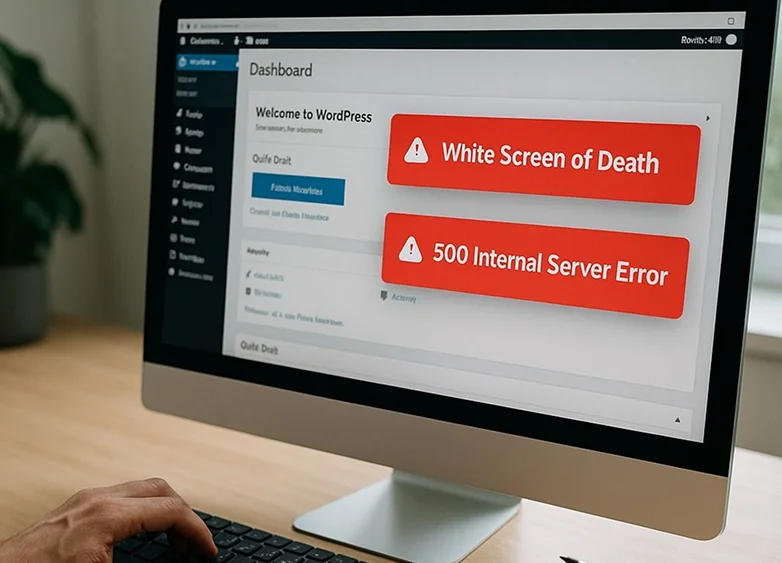
These are the most stressful common WordPress issues. The ones that make your complete site inaccessible. If your website is not loading at all, showing a blank screen or throwing server errors, your WordPress problem likely falls into this category.
Here’s how to fix each one fast.
1. WordPress White Screen of Death
What it looks like: Your site shows a completely blank white screen. No error message, no content. Sometimes “wp-admin” works and sometimes it doesn’t.
Why it happens:
- Plugin conflicts.
- Theme compatibility issues.
- PHP memory limit exhaustion.
- Fatal PHP errors.
How to fix it:
Step 1: Increase PHP Memory Limit
First of all, add this to your wp-config.php file:
define(‘WP_MEMORY_LIMIT’, ‘256M’);
Step 2: Disable All Plugins
Now, you have to disable all plugins and to do that, you gotta access your site via FTP or File Manager → rename the /wp-content/plugins folder to plugins_old.
If the site loads, one plugin is causing the issue. Rename the folder back and activate plugins one by one.
Step 3: Switch to Default Theme
Rename your active theme folder inside /wp-content/themes/. WordPress will revert to a default theme.
2. Error Establishing a Database Connection
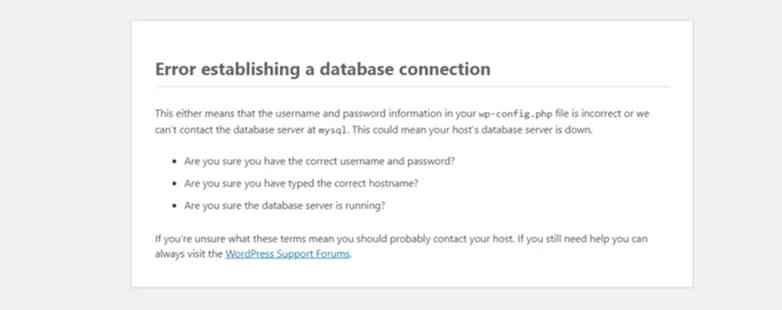
What it looks like: “Error establishing a database connection” message across your site.
Why it happens:
- Incorrect database credentials.
- Corrupted database.
- Hosting server issue.
- Database server down.
How to fix it:
Step 1: Check wp-config.php
You have to verify your:
- Database name.
- Username..
- Password.
- Host
You can match them with your hosting control panel.
Step 2: Repair the Database
Add this line to “wp-config.php”:
define(‘WP_ALLOW_REPAIR’, true);
Then visit: yourdomain.com/wp-admin/maint/repair.php
Step 3: Contact Hosting Support
If credentials are correct, the database server may be down, so simply call or message your hosting providers.
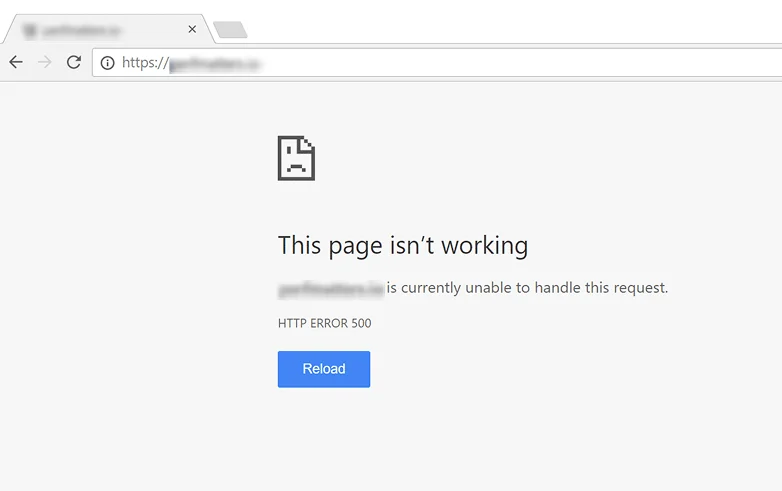
3. 500 Internal Server Error

What it looks like: “500 Internal Server Error” message when accessing your website.
Why it happens:
- Corrupted .htaccess file.
- Plugin conflict.
- Exceeded PHP limits.
- Server misconfiguration.
How to fix it:
Step 1: Regenerate .htaccess
First things first, rename your .htaccess file via FTP.
Later on, head over to Settings → Permalinks → Save Changes to regenerate it.
Step 2: Disable Plugins
Simply disable your plugins – again and rename the plugins folder to test for conflicts.
Step 3: Increase PHP Limits
Ask your hosting provider to increase:
- memory_limit
- max_execution_time
- post_max_size
4. 404 Errors After Permalink Changes
What it looks like: Your homepage works but posts and pages show 404 errors.
Why it happens:
- Broken rewrite rules after changing permalink structure.
How to fix it:
Step 1: Reset Permalinks
First you gotta go to:
WordPress Dashboard → Settings → Permalinks → Save Changes
Step 2: Check .htaccess Permissions
After this, you just have to make sure the file is writable (usually 644).
Step 3: Regenerate .htaccess Manually
At last, if needed only, add default WordPress rewrite rules manually.
5. WordPress Stuck in Maintenance Mode

What it looks like: “Briefly unavailable for scheduled maintenance” message that never disappears.
Why it happens:
- An update was interrupted that leaves a .maintenance file behind.
How to fix it:
Step 1: Delete the .maintenance File
By using your FTP or File Manager:
- Go to your root directory
- Next, delete the .maintenance file
Step 2: Clear Cache
Now, Clear any caching plugins and browser cache.
Step 3: Check File Permissions
Make sure your update process isn’t blocked by any kind of restrictive permissions.
II. Login & Admin Dashboard Issues

These common WordPress issues don’t always break the front-end of your site, but they can lock you out of your own dashboard.
If your WP admin is not working, you’re stuck in a login redirect loop or you’re not receiving admin emails, your WordPress site is technically “live”, yet you’ve lost control.
Thus here are WordPress fix for each and every WordPress issue:
6. WP Admin Not Working
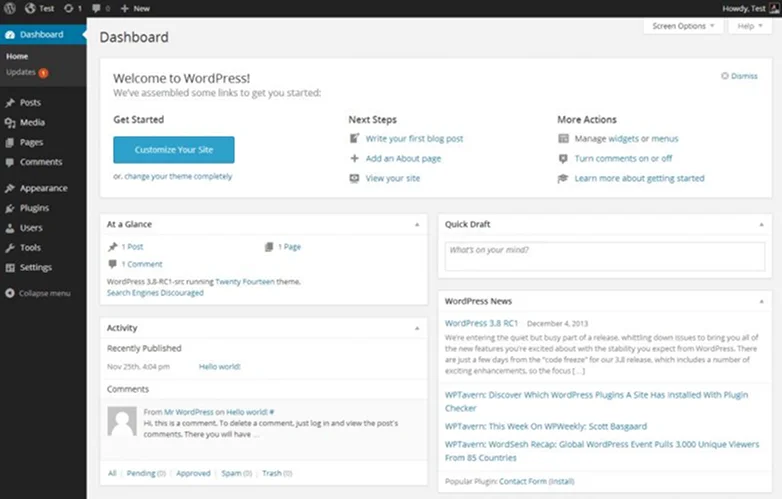
What it looks like: “/wp-admin” shows a blank page or you get a 404 or 500 error. Also, your dashboard loads half way only or freezes.
Why it happens:
- Plugin conflict.
- Theme issue.
- Corrupted WordPress core files.
- Memory limits exhaustion.
- Security plugin misconfiguration.
How to fix it:
Step 1: Disable Plugins
Again, you have to first get access via FTP → Rename /wp-content/plugins to plugins_old.
If wp-admin loads, a plugin is causing the issue. Thus you just simply reactivate each one of them, one by one.
Step 2: Switch to Default Theme
Rename your active theme folder. WordPress will revert automatically.
Step 3: Reinstall WordPress Core
Download fresh WordPress files and replace:
- /wp-admin
- /wp-includes
Do NOT replace /wp-content.
Step 4: Increase Memory Limit
Add in wp-config.php:
define(‘WP_MEMORY_LIMIT’, ‘256M’);
7. WordPress Login Redirect Loop

What it looks like: You enter login credentials, click “Log In” and suddenly it redirects back to the login page again and again. This is a WordPress too many redirects to the same page.
Why it happens:
- Corrupted cookies.
- Cache issues.
- Incorrect site URL settings.
- SSL misconfiguration.
- Plugin conflict.
How to fix it:
Step 1: Clear Browser Cookies & Cache
Outdated or corrupted cookies are the most common cause. Try logging in using an Incognito or private window first to verify if the issue is browser related.
Step 2: Check WordPress URL
If not resolved yet, head over to the :
Settings → General, and make sure your WordPress Address (URL) and Site Address (URL), match exactly (with or without www — not mixed).
If locked out, edit in wp-config.php:
define(‘WP_HOME’,’https://yourdomain.com’);
define(‘WP_SITEURL’,’https://yourdomain.com’);
Step 3: Disable Plugins
Especially caching or security plugins.
Step 4: Regenerate .htaccess
Rename .htaccess and resave permalinks.
8. Locked Out Due to Too Many Failed Login Attempts
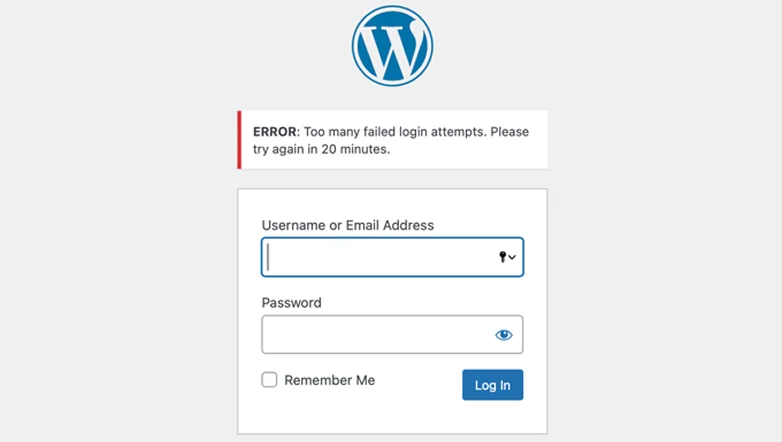
What it looks like: You’re blocked from logging in even after multiple failed attempts.
Why it happens:
- Security plugin lockout.
- Hosting-level firewall restriction.
- Brute force protection triggered.
How to fix it:
Step 1: Disable Security Plugin
You can rename its folder via FTP.
Step 2: Access phpMyAdmin
Next, look for lockout-related options in the “wp_options “ table and reset them.
Step 3: Whitelist Your IP
In your hosting firewall or security plugin settings.
Pro Tip: If you’re getting locked out again and again, lower failed attempt thresholds or use a password manager to avoid typos.
9. Admin Email Not Receiving Notifications
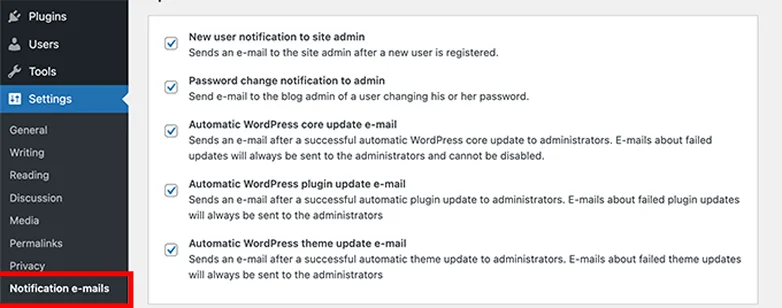
What it looks like:
- No password reset emails.
- No order notifications.
- No contact form emails.
Why it happens:
- Hosting doesn’t support PHP mail properly.
- Emails marked as spam.
- Incorrect admin email address.
- SMTP not configured.
How to fix it:
Step 1: Check Admin Email
You just have to go to your WordPress Dashboard → Settings → General.
Step 2: Install an SMTP Plugin
Now, you can configure SMTP using:
- Gmail.
- SendGrid.
- Mailgun.
- Your hosting SMTP.
This is only to make sure proper email authentication.
Step 3: Check Spam Folder
Check your spam folder.
Step 4: Verify DNS Records
For verification, you gotta later add:
- SPF.
- DKIM.
- DMARC.
Messed up DNS configuration is one of the most common WordPress email issues.
III. Performance & Speed Issues
Slow performance is one of the most common WordPress problems….and one of the most expensive.
A slow site doesn’t just frustrate visitors. It:
- Lowers conversions.
- Increases bounce rates.
- Hurts SEO rankings.
- Strains your hosting resources.
If your WordPress site is loading slow or consuming too many server resources, here’s the fix.
10. WordPress Site Loading Slow
What it looks like:
- Pages take 3–10+ seconds to load.
- The admin dashboard feels sluggish.
- Hosting warns about resource limits.
- Core Web Vitals failing.
Why it happens:
- Cheap or overloaded hosting.
- No caching enabled.
- Large unoptimized images.
- Too many plugins.
- Heavy themes.
- No CDN.
- Database bloat.
How to fix it:
Step 1: Enable Caching
Firstly, install a WordPress caching plugin or use server level caching (if your host offers it).
Step 2: Optimize Images
Next , you gotta compress images before uploading or use an image optimization plugin.
Avoid uploading 3MB+ images directly from a camera.
Step 3: Use a CDN
A Content Delivery Network reduces load time globally.
Step 4: Clean Your Database
Simply remove:
- Post revisions.
- Spam comments.
- Expired transients.
Step 5: Upgrade Hosting (Optional)
If you’re those hitting CPU or memory limits, again and again, shared hosting is problematic.
Pro Insight: If your backend is slow too, the issue is simply server resources or plugin overload.
IV. Redirect & URL Problems
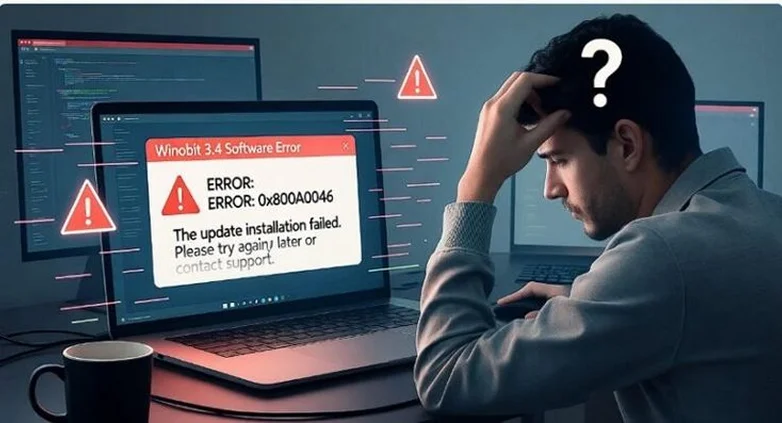
Redirect and URL misconfigurations are among the most confusing WordPress issues because your WordPress site partially loads, loops endlessly or shows security warnings.
Most of the time, these WordPress problems are caused by SSL setup errors, incorrect site URLs, caching conflicts or misconfigured redirect rules.
Here are your WordPress issue fixes:
11. WordPress Too Many Redirects Error

What it looks like: Your browser shows:
- “ERR_TOO_MANY_REDIRECTS”.
- “The page isn’t redirecting properly”.
Or your site keeps refreshing without loading.
Why it happens:
- HTTP → HTTPS redirect conflict.
- WordPress URL mismatch (www vs non www).
- Incorrect SSL configuration.
- Redirect rules inside .htaccess.
- Caching plugin conflict.
- Cloudflare or CDN misconfiguration.
How to fix it:
Step 1: Clear Browser Cache & Cookies
First things first, sometimes old cookies trigger loops so lets clear the browser cache and cookies.
Step 2: Check WordPress URL Settings.
After that, head over to:
Dashboard → Settings → General. And make sure:
- WordPress Address (URL)
- Site Address (URL)
Both use the same format:
- Either https://yourdomain.com
- Or https://www.yourdomain.com
Not mixed.
If locked out, edit wp-config.php:
define(‘WP_HOME’,’https://yourdomain.com’);
define(‘WP_SITEURL’,’https://yourdomain.com’);
Step 3: Check .htaccess Redirect Rules
Rename .htaccess temporarily and test. If lucky and fixed, regenerate it via:
Settings → Permalinks → Save Changes
Step 4: Disable Caching & Security Plugins
Now just rename /wp-content/plugins to test.
Step 5: Check Hosting or CDN SSL Settings
If you’re using Cloudflare or server-level SSL, make sure your SSL mode matches your server (Full or Full Strict). Also, make sure not to force HTTPS in multiple places
12. Mixed Content Warnings After SSL Install
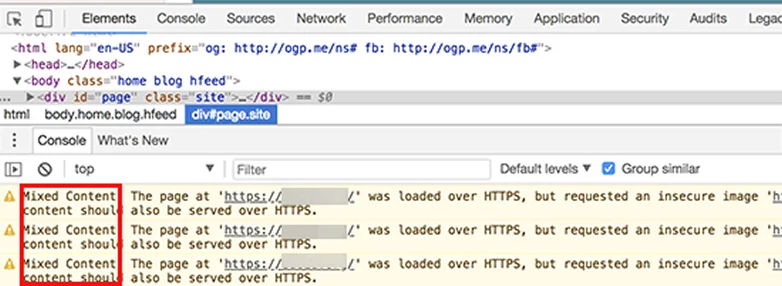
What it looks like: Your site loads with HTTPS, but:
- Browser shows “Not Fully Secure”.
- The padlock icon is broken.
- Dev tools show mixed content warnings.
Why it happens: Some resources still load via HTTP:
- Images.
- CSS files.
- JavaScript.
- Hardcoded internal links.
How to fix it:
Step 1: Update WordPress URLs
Make sure to check your:
- WordPress Address.
- Site Address.
And always use “https://”
Step 2: Replace HTTP Links in Database
Now you can use a search-and-replace tool to change:
This updates:
- Image URLs.
- Internal links.
- Embedded assets.
Step 3: Check Theme Files
Sometimes themes hardcode HTTP links. That’s why you should search for, “http://” in:
- header.php
- footer.php
- custom template files
Step 4: Update External Scripts
Be sure that all external scripts (fonts, libraries, APIs) are using HTTPS.
Step 5: Clear All Caches
At last, simply ear your
- WordPress cache.
- CDN cache.
- Browser cache.
Important: Mixed content warnings don’t usually break your site but they hurt SEO, lowers user trust and may block certain browser features.
V. Media & Content Upload Problems
Media errors are common WordPress problems especially after hosting changes, updates or permission misconfigurations
The good news? They’re mostly easy to fix.
13. Image Upload Failing in WordPress

What it looks like:
- “HTTP error” during upload
- Image uploads but doesn’t display
- “Unable to create directory” error
Why it happens:
- Incorrect file permissions
- Low PHP memory limit
- Plugin conflict
- Corrupted .htaccess
How to fix it:
Step 1: Check permissions
Check /wp-content/uploads permissions (usually 755 for folders).
Step 2: Increase memory in wp-config.php:
define(‘WP_MEMORY_LIMIT’, ‘256M’);
Step 3: Disable plugins temporarily.
Disable plugins temporarily.
Step 4: Regenerate .htaccess (Settings → Permalinks → Save).
Go to Settings → Permalinks → Save.
14. File Upload Size Exceeded Error

What it looks like: “The uploaded file exceeds the upload_max_filesize directive.”
Why it happens:
- Your hosting limits file upload size.
How to Fix it:
Simply increase your limits in php.ini:
- upload_max_filesize = 64M
- post_max_size = 64M
Also, you can try to ask hosting support to increase it. For large videos, we recommend considering uploading via FTP.
VI. Plugin & Theme Conflicts
WordPress Plugin and theme conflicts are among the most common WordPress issues after updates. One incompatible plugin is all it takes to break your layouts, trigger WordPress errors or even crash your site.
Thus here’s how to fix WordPress problems:
15.Plugin Conflict Causing WordPress Errors

What it looks like:
- White screen after installing or updating a WordPress plugin.
- Features suddenly stop working.
- Checkout, forms or login breaks.
- Random JavaScript errors.
Why it happens:
- Two plugins trying to control the same feature.
- The outdated plugin doesn’t work with the current WordPress version.
- Theme and plugin incompatibility.
- Poorly coded plugin.
How to Fix it:
First of all, deactivate all WordPress plugins via FTP (rename /plugins folder).
Later, you can reactivate them one by one to find the culprit. Plus, update the conflicting plugin or replace it with a better alternative. And If this WordPress issue started after a theme update, you know what to do – switch back to your default theme to confirm.
VII. WordPress Security Issues

WordPress security issues are serious WordPress problems because they affect trust, SEO and revenue. Thus here are your common quick WordPress fixes:
16. WordPress Security Vulnerabilities
What it looks like:
- Spam users registering.
- Suspicious redirects..
- Hosting warnings.
- Google security alerts.
Why it happens:
- Outdated WordPress core, themes or plugins.
- Weak passwords.
- No firewall or security plugin.
- Unprotected admin area.
How to Fix it:
First we suggest you update your WordPress, themes and plugins right away. Later, get yourself a reliable WordPress security plugin with firewall protection.
Next, change all passwords (admin, database, hosting) and disable file editing in wp-config.php:
define(‘DISALLOW_FILE_EDIT’, true);
Last but not the least, enable two-factor authentication (2FA).
17. Malware or Hacked WordPress Site
What it looks like:
- Random ads or popups.
- Unknown admin users.
- Traffic drop from Google.
- Site blacklisted.
Why it happens:
- Vulnerable plugins.
- Nulled or pirated WordPress themes or plugins.
- Weak hosting security.
- Brute force attacks.
How to Fix it:
First of all, you must quickly act and put the site in maintenance mode. After that, scan with a security tool or hosting malware scanner.
By chance if you find the infected files, remove them without a second thought and restore from a clean backup.
After everything is fixed, reinstall your WordPress core files and change all credentials and regenerate security keys.
Expert Advice: If your WordPress site is hacked, act fast. The longer malware stays active, the more SEO damage and data risk you face.
Final Thoughts
WordPress is powerful, yet it’s not immune to problems.
From white screens and login loops to slow loading pages and WordPress security vulnerabilities, most common WordPress issues fall into predictable categories. And once you understand the category, fixing the problem becomes much easier.
Here’s what matters most:
- Don’t panic.
- Don’t randomly change settings.
- Diagnose first, fix second.
In most scenarios, WordPress problems are caused by:
- Plugin or theme conflicts.
- Incorrect URL or SSL settings.
- Server resource limits.
- Outdated software.
- Misconfigured permissions.
Very rarely is the issue “WordPress itself.”
If you follow a structured troubleshooting process which is: disable plugins, check URLs, verify server limits and then review recent changes, you can fix most WordPress errors in minutes.
And if your site handles traffic, sales, memberships or client data, prevention is just as important as fixing:
- Keep everything updated
- Use quality hosting
- Limit unnecessary plugins
- Schedule regular backups
- Secure your admin area
When you approach WordPress issues calmly in a systematic way, even the most frustrating WordPress error becomes manageable.
Now, if you’re still facing a specific issue, scroll back to the relevant section and apply the fix step by step. Remember: your WordPress site is almost always recoverable.
Related Articles: