The biggest WordPress maintenance problems aren’t always the ones you notice right away.
They mostly start as small changes: a query gets slower, error logs fill with repeated warnings, scheduled tasks begin piling up or an integration quietly stops communicating with another service.
Left unchecked, these small issues can eventually cause much bigger problems.
A good WordPress maintenance routine is about finding those warning signs early, not simply ticking off “update plugins” and “run a backup” every month.
This WordPress maintenance checklist walks through 7 practical tasks that we have been doing for client sites for years. Implement these every month, and your WordPress site will stay secure, functional, and healthy over the long term.
WordPress Maintenance Checklist: Quick Summary
Here’s now a quick look at the WordPress maintenance checklist you should tick-on in every 30 days:
- Update WordPress, plugins and themes to keep your site secure
- Verify and test backups to make sure you can actually restore your website when needed
- Run security checks to catch vulnerabilities or sus activities
- Track website and database performance for slow queries and unusual traffic.
- Check error logs and scheduled tasks for failed cron jobs and other warning signs
- Test forms, emails and APIs to make sure your website’s important workflows still work
- Review database health and Site Health to recognize unnecessary data, autoloaded options and other issues
Thus, if you follow this WordPress website maintenance checklist, you can easily catch small problems before they turn into big website issues.
What Happens If You Don’t Maintain Your WordPress Website?
A WordPress website can continue working even when problems are already building behind the scenes.
With no WordPress monthly maintenance, those small issues can eventually affect your website’s security, performance, functionality, and ability to recover in the long run when something goes wrong.
Thus, here are some of the problems you can run into (most of our client did) when you neglect regular WordPress website maintenance:
- Security vulnerabilities: Outdated WordPress core, plugins and themes can leave known vulnerabilities unaddressed.
- Slower performance: Database bloat, inefficient queries, excessive background tasks or unwanted traffic can slowly (but surely) affect your site’s performance.
- Broken features: Plugin conflicts, failed updates, or outdated integrations can cause important features to stop working right away.
- Missed emails and failed integrations: A form can appear to work but its notification email, CRM connection, payment service, or other integration can fail silently (before you even notice)
- Failed scheduled tasks: Stuck or missed cron events can stop background processes from running.
The good news? Many of these WordPress problems can be caught early with a simple maintenance routine. Next, let’s now look at our WordPress maintenance checklist to keep your site healthy always.
7 WordPress Maintenance Checks To Keep Your Site Running Smoothly
1. Update WordPress, Plugins & Themes

For a bug-free operation, updating WordPress core, the plugins in it, and the themes used, is the first important maintenance step to patch security vulnerabilities.
But updating everything blindly is not the right plan either.
Thus before updating anything, make sure you have a recent backup of your website when you are updating WordPress core or important plugins. A plugin update can sometimes introduce compatibility issues with another plugin, your theme or the current WordPress version.
So what should you check every month?
Check for WordPress core updates
Make sure your WordPress installation is running on a supported and updated version. WordPress core updates can include security fixes, bug fixes and other improvements to keep your website working properly.
Update your plugins and themes
Review all installed plugins and themes and check if any updates are available. You shouldn’t keep plugins that no longer are needed. Afterall, removing unused plugins and themes also lowers unnecessary security risks.
Check for compatibility issues
After updating, quickly browse through the important parts of your website. Check your homepage, forms, login pages, checkout, booking process, or any other features that are important for your website.
Sometimes, everything can look normal from the WordPress dashboard, while a plugin update has broken something on the frontend.
Don’t ignore outdated plugins
If a plugin has not been updated for a very long time, don’t simply leave it installed because “it still works.” An outdated plugin can become a security or compatibility problem later.
You should review whether you actually need it, whether the developer still maintains it, and whether there is a newer alternative if necessary.
Thus, the goal of monthly updates is to keep your WordPress environment updated, compatible and free from software that you no longer need.
2. Verify and Test Backups
Having a backup is important, but simply having an automated backup system doesn’t mean your website is actually protected.
A backup can fail, miss important files, or become impossible to restore when you actually need it. Thus checking your backups should be a regular part of your WordPress maintenance routine.
So, what should you check every month?
Check if backups are actually running
Open your backup solution and make sure the scheduled backups are completed successfully. Don’t assume that because a backup plugin is installed, your backups are being created properly.
You must look for failed, incomplete or missed backup jobs and check whether they contain both your website files and database.
Check where your backups are stored
Make sure your backups are stored somewhere separate from your live website. If your server has a problem and your backup is stored on the same server, you may lose both at the same time.
Test a backup restore
This is the part many website owners skip.
A backup is only useful if you can actually restore your website from it. Periodically test restoring a backup in a staging environment or another safe location and make sure the website works as expected.
Thus, don’t just check whether the backup exists. Check whether it can save you when something goes wrong.
3. Run Security Checks

Security maintenance is not only about installing a security plugin and forgetting about it.
As we all know WordPress sites can develop security issues over time because of outdated software, unused plugins, weak user accounts or suspicious activity. Thus a WordPress monthly security check makes it easy to catch these problems before they become bigger issues.
So what should you review? Let us show you how:
Check for security warnings
Always review your security plugin, hosting dashboard and WordPress Site Health for any warnings or suspicious activity. Apart from this, pay attention to failed login attempts, unexpected file changes, malware alerts or other unusual activity.
Review users and permissions
Go through your WordPress user accounts. Then check whether there are any accounts that are no longer needed. On top of that, review administrator-level users. Make sure only the right people still have access.
Review plugins and themes
Check for outdated, abandoned or unused plugins and themes. If you are no longer using something, remove it instead of simply leaving it installed.
Also, check whether any installed plugin or theme has known security warnings that need your attention.
Look for unusual activity
If your website suddenly has unusual login attempts, unexpected admin users, strange files, or other activity that you don’t recognize, don’t ignore it.
Thus the goal of a monthly security check is to regularly look for warning signs and deal with them before they turn into a bigger security nightmare..
4. Monitor Website Performance

A WordPress website can become slower without any obvious change.
A new plugin, inefficient database query, growing amount of data, background task, or sudden increase in unwanted traffic can gradually affect your website’s performance.
Thus, don’t only check whether your homepage loads; Look for changes in how the website is performing over time.
Check your page loading speed
Test your important pages and compare their performance with previous results. You don’t need to obsess over a single speed score, but a sudden drop can be a useful warning sign.
Look for slow queries
If your website is becoming slower, check if database queries are taking longer than usual. Tools such as Query Monitor are what we use to find slow queries, database errors and other performance related issues.
Check unusual traffic
A sudden increase in traffic isn’t always a good thing. Bots, crawlers or unwanted traffic puts extra load on your server and affect site’s performance.
Thus if you notice unusual traffic patterns, check where the traffic is coming from and whether it is affecting your server resources.
Review background tasks
Scheduled tasks and background processes affect performance. So if too many tasks are failing or piling up, they can create server load.
Thus monthly performance monitoring is less about chasing the highest possible speed score and more about noticing when your website starts behaving differently.
5. Check Error Logs
Error logs can tell you about problems that your visitors have not noticed yet.
A website can look completely normal on the frontend while PHP errors, database warnings, failed API requests or plugin related issues are quietly being recorded in the background.
This is why checking error logs should be part of your regular WordPress maintenance.
One of the best examples of this is below:
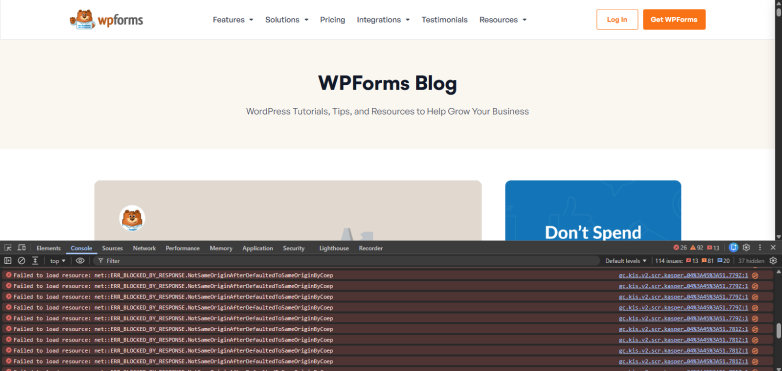
As you can see the website works perfectly for visitors like us for now. But if you check its Code Console, you’ll see the errors we have been talking about.
Look for repeated errors
Don’t just look for a single warning and immediately panic. Instead, look for errors that are happening repeatedly.
Check PHP and server errors
Review your hosting or server logs for PHP errors, fatal errors, memory related issues and other warnings. These can sometimes let you find problems before they become visible to users.
Check for plugin related errors
If the same plugin keeps appearing in your error logs, investigate it. It can be conflicting with another plugin, calling an unavailable function or failing to complete a particular task. The moral? Never ignore errors flags.
Look for patterns over time
One error by itself may not tell you much. But if the same error appears every day or starts increasing after a recent update, it is a clear red flag. And never ever you should ignore warning signs.
6. Test Forms, Emails & Key Features

A website can look perfectly fine while one of its most important workflows has already stopped working.
For example, a contact form can accept a submission successfully, but the notification email may never reach the website owner. Similarly, a payment gateway, CRM connection, booking system or any other third party integration can fail silently without showing an obvious error on the frontend.
Thus, don’t only check whether your website pages are loading. Test the features that your visitors actually depend on.
Test important forms
Submit your main contact, registration, booking or other important online WordPress forms yourself. Make sure the submission is completed properly and the expected confirmation message or action happens.
You can create WordPress forms using reliable WordPress form builder plugins like ARForms.
Check email delivery
Ensure form notifications and other important site emails are actually reaching the intended inbox. Never ever just assume everything is working because a form submission was recorded.
Also, check the spam folder as well if you notice any missing notifications.
Verify third party integrations
Always test important connections with services such as CRMs, payment gateways, email marketing tools, SMTP services or other APIs used by your website because these integrations can stop working anytime because of expired credentials, API changes, configuration issues or other problems. You may not even notice the issue until it is too late.
Test your key user workflows
Go through the most important actions a visitor can take on your website. This could be making a booking, completing checkout, creating an account, submitting a form, downloading a file, or anything else that directly affects your business.
All in all, a monthly maintenance check should include actually using your website like a visitor. Sometimes that simple test can catch a problem that your WordPress dashboard won’t show you.
7. Review Database, Cron Jobs & Site Health
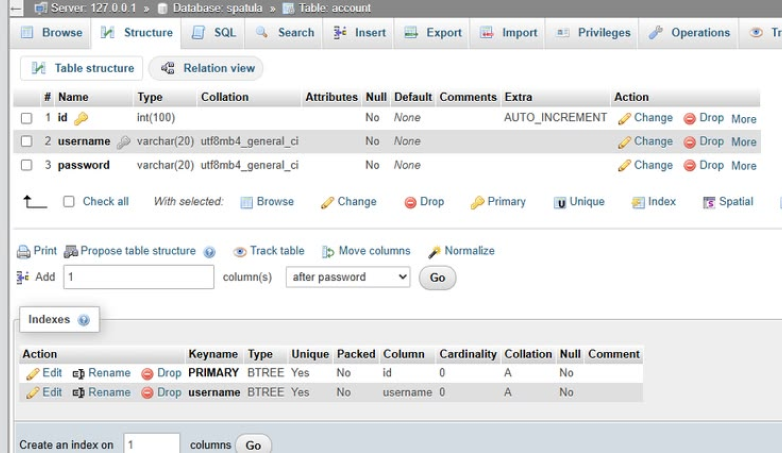
Your WordPress database is constantly collecting data as your website grows.
Plugins, themes, forms, WooCommerce, page builders and other tools can leave behind unused or orphaned data over time. At the same time, scheduled WordPress tasks can fail or pile up in the background.
So, what should you review?
Check database health
Look for unnecessary data, unused tables, orphaned records and other database bloat. Also, please be careful before deleting anything because some data still be required by an active plugin or feature.
Review autoloaded data
Check for unusually large autoloaded options. WordPress loads autoloaded data on requests so excessive or unnecessary data here can contribute to performance problems.
Check cron jobs
Review scheduled WordPress events and look for failed, overdue, or repeatedly missed cron jobs.
Because a stuck cron event can cause background processes to stop working properly, a large number of scheduled tasks can also create unnecessary server load.
Review WordPress Site Health
Finally, don’t forget to check the Site Health section in your WordPress dashboard for critical issues and recommended improvements. This shows the problem is related to WordPress configuration, PHP version, HTTPS, scheduled events, REST API and other parts of your website environment.
Thus this final check is about looking beyond the visible website and reviewing the systems working behind it.
Final Thoughts
WordPress maintenance is about regularly checking the small things that can become bigger problems later. From keeping WordPress and its plugins updated to testing backups, monitoring performance, checking error logs and testing important website workflows, our WordPress maintenance checklist ticks all the important points.
You don’t need to perform every task at the same depth every month either. Some checks need more attention depending on the size and complexity of your website.
But if you make these 7 checks part of your regular WordPress website maintenance routine, you will have a much better idea of what is happening behind the scenes.
And most importantly, you won’t have to wait for something to break before you start looking for the problem.
Related Articles