If you’re looking for a complete WordPress WooCommerce tutorial, you’re likely planning to build an ecommerce website with WordPress and WooCommerce ….and you’re on the right track!
WooCommerce is the most popular eCommerce plugin in the WordPress ecosystem. It allows you to create, manage and grow your online store with no expensive platforms or monthly fees.
In this beginner friendly eCommerce tutorial, you’ll learn:
- What WooCommerce is and how it works
- What WooCommerce is used for in real businesses
- how to create a eCommerce website in WordPress step by step
No matter whether you’re starting from scratch or upgrading an existing site, this WooCommerce tutorial will help you build a powerful online eCommerce store for long term growth.
What is WooCommerce?
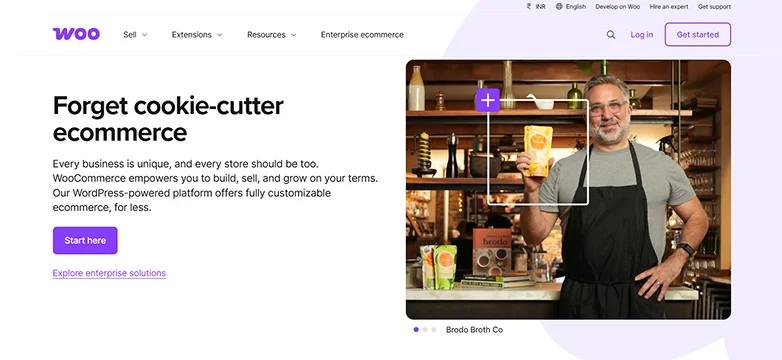
WooCommerce is a powerful eCommerce plugin for WordPress that allows you to turn any WordPress site into a full-power eCommerce store.
In simple words, WooCommerce adds all the tools you need to sell products online. From product listings and shopping carts to payments, taxes and order management, WooCommerce manages everything.
Developed by Automattic, it works smoothly in your WordPress dashboard, which means you stay in full control of your website, data and design.
The best part? WooCommerce is 100% free to use in the WordPress plugin directory, powering over 7+ million online stores right now.
What is WooCommerce used for?
WooCommerce is used to sell:
- Physical products (clothing, electronics, accessories)
- Digital products (ebooks, software, courses)
- Subscriptions and memberships
- Services and bookings
- Affiliate or external products
Whether you’re starting small or planning to scale, WooCommerce adapts easily to your business model.
Why Choose WooCommerce for Your Online Store?
There are many eCommerce platforms live at the moment, but WooCommerce continues to be the top choice for WordPress users and for good reason.
Here’s why millions of businesses trust WooCommerce to power their online stores:
Beginner-Friendly Yet Powerful
WooCommerce is easy to set up even if you’ve never created an online store site before. At the same time, it’s powerful enough to support advanced features as your store grows.
You can start simple and grow without switching platforms later. That’s the exact thing attracting millions of WooCommerce store owners.
Full Control Over Your Store
Unlike hosted platforms, WooCommerce gives you complete ownership of:
- Your website
- Your customer data
- Your design
- Your functionality
There are no forced upgrades, hidden restrictions or platform lock-ins.
Works Smoothly with WordPress
Since WooCommerce is built for WordPress, it integrates smoothly with almost all popular :
- WordPress themes
- SEO plugins
- Page builders
- Form builders
- Membership plugins
- Security and performance tools
- And a LOT more!
Thus, if you’re already using WordPress or planning to build content alongside your store, WooCommerce is the great pick.
Highly Customizable for Any Business
WooCommerce is fully customizable as you want. It supports thousands of extensions and plugins that let you:
- Add advanced shipping rules
- Offer subscriptions or memberships
- Sell digital or physical products
- Create custom checkout experiences
- and do a LOT more than you think.
You can shape your store exactly how you want with zero limits.
Budget Friendly & Grows with Your Business
You can start for free and only pay for features you actually need. This makes WooCommerce perfect for:
- Beginners testing ideas
- Small businesses growing on their own pace
- Established brands scaling operations
As your business grows, WooCommerce grows with you.
Huge Community & Support
With millions of active users, WooCommerce has:
- Extensive documentation
- Community support
- Tutorials, forums, and plugins
When it comes to WooCommerce, you’re never stuck without help.
Requirements Before Setting Up WooCommerce
Before we dive deeper into this WordPress WooCommerce tutorial, it’s important to make sure your website is ready to take off.
Preparing in advance, whether it’s for exams or online stores, helps you avoid technical hiccups and moments of pauses to be sure your online store runs smoothly from day one.
Here’s what you need:
- Domain name: Your online store’s web address (e.g.: tco.com)
- Web Hosting: A hosting plan capable of handling WooCommerce traffic is recommended.
- SSL certificate: It is a must-have for security (HTTPS) to protect your customers data, trust and payments
- A WordPress website: WooCommerce is a plugin for WordPress so the first step is having a WordPress site itself. If you haven’t set one up yet, do it now.
- Products and Content: Before launching, make sure to have all your products ready, their images, description, pricing and so on ready on back.
- Basic Knowledge of WordPress: We are not asking you to be a tech-wizard, but at least you must know how to install plugins, edit pages, posts and manage menus as well as widgets in WordPress.
With these all things set in place, you’re finally ready to move on to installing and setting up WooCommerce.
So let’s dive into the next step of this WooCommerce tutorial.
How To Install and Set Up WooCommerce
Step 1: Install WooCommerce Plugin
Installing WooCommerce is the first step to turning your WordPress site into a full-power online store.
No need to get overwhelmed by thinking it’s gonna be complex as it is not. All you have to do is tag along with us to the end of the blog.
First thing first, go to your WordPress dashboard → Plugins → Add Plugin.
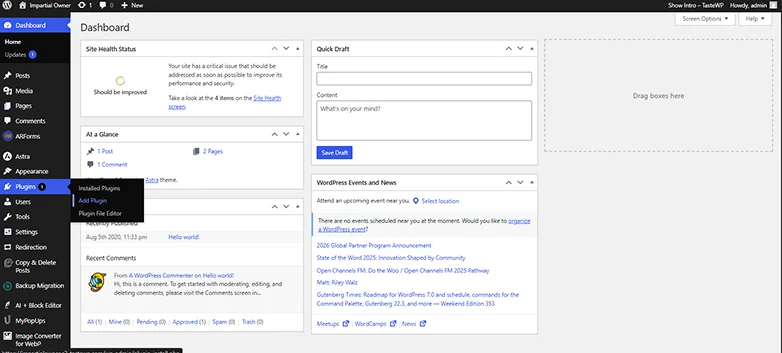
From here on, in the search bar, just type “WooCommerce” and wait for auto-search to find the WooCommerce plugin.
After a few seconds, the official WooCommerce plugin (by Automattic) pops up.
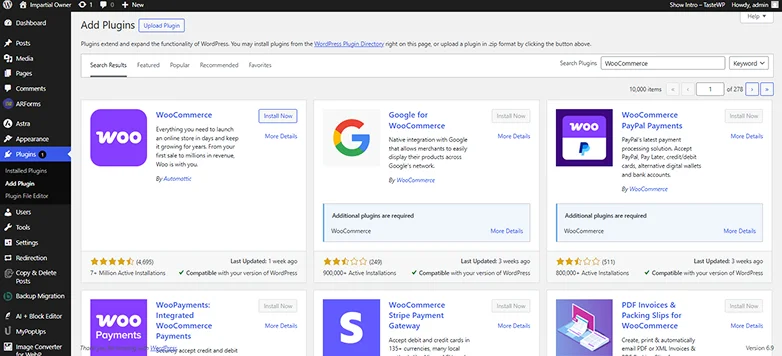
Next click “Install Now”. After installation, click “Activate”.
Once activated, WooCommerce automatically adds all the basic eCommerce features you need:
- Product pages
- Shopping cart
- Checkout process
- Order management
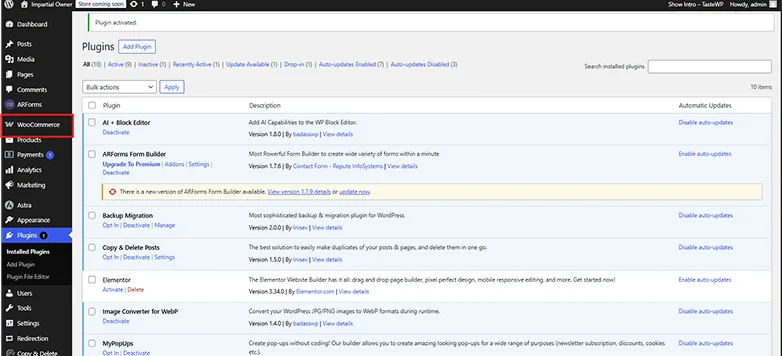
Expert Tip: After activation, click on WooCommerce icon on the land hand menu and let it launch a Setup Wizard to guide you through basic store settings – don’t skip it!
This step makes sure your website is ready for products, payments and everything else an online store needs
Step 2: WooCommerce Setup Wizard
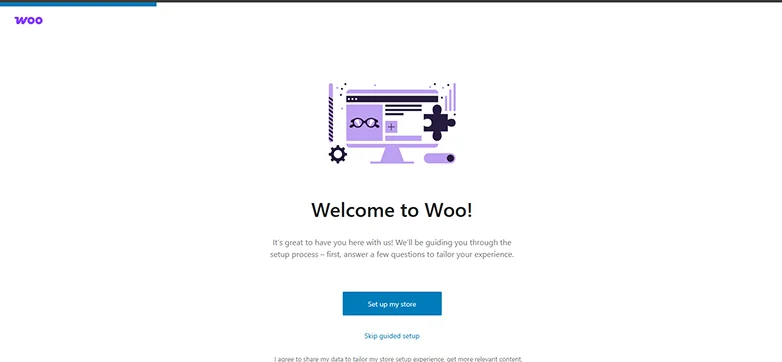
Once you activate WooCommerce, the Setup Wizard will automatically start. As discussed before, WooCommerce is a beginner friendly tool that walks you through the essential store settings, so you don’t have to guess or dig through menus.
Here’s what you’ll do in the wizard:
Store Details

- Enter your store’s address, city, country, and ZIP code.
- Choose your currency. Then whether you plan to sell physical, digital, or both types of products.
- Industry or Business type.
Payment Options
Now you have to choose the gateways you want to accept: PayPal, Stripe, or offline payments. Don’t worry as you can add more payment methods later if needed.
Shipping Settings
Now you can set your shipping zones and rates for local and international orders. Furthermore, you can also enable free shipping or set flat rates for different countries with ease.
Recommended Features & Theme
WooCommerce may suggest a theme optimized for online stores. You can accept these suggestions or pick your own WooCommerce compatible theme. Just remember this is optional so no worries.
Expert Tip: Completing the Setup Wizard gives you a ready-to-use store foundation.
Step 3: Add Your First Product with Ease
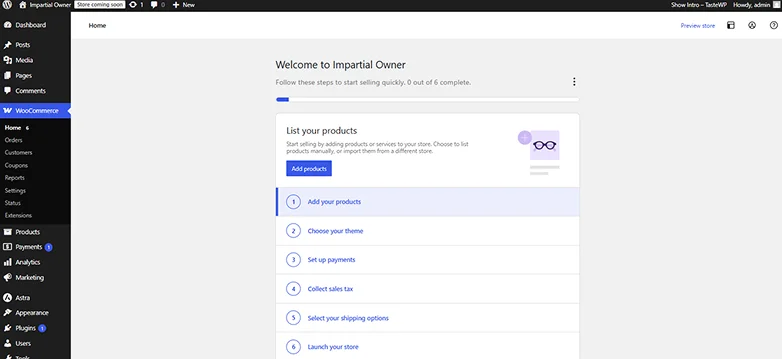
Now that WooCommerce is installed and your store is set up, it’s time to add your first product. This is where your store really starts to take shape!
The best part? Even after the WooCommerce setup wizard, WooCommerce doesn’t abandon you. It still helps you add your first product, giving you a list of simple steps to kickstart your online store.
Here’s how to add your online store’s products in WooCommerce:
From here, you can either go with the flow or add the product manually.
For adding products the standard way, head over to WooCommerce Dashboard and you’ll see the “Products” panel in the left-hand menu under WooCommerce.
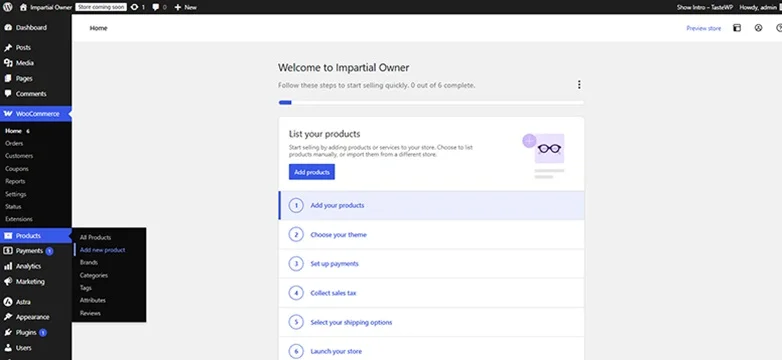
Simple go to Products → Add New Product in your WordPress dashboard.
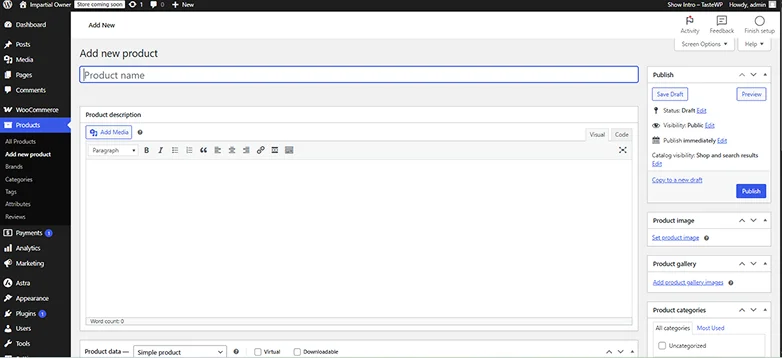
From here, you’ll be redirected to WooCommerce’s Add New product panel and enter your product’s details such as:
- Product Name: Make it clear and descriptive.
- Description: Write engaging content that explains the benefits of your product.
- Inventory & Stock Management (Optional): Enable stock tracking and set the number of items in stock
- Add Product Images: Upload high quality images to showcase your product from different angles.
- Assign Categories & Tags: Organize your products for easier navigation and better SEO.
- Set the Price: Enter a regular price and, if needed, a sale price. Moreover, you can also Schedule the sale price for special seasons, events and a LOT more…
- Product Type: You can sell many product types via WooCommerce such as Simple Product, Grouped Product, External/Affiliate product and Virtual or Downloadable Products.
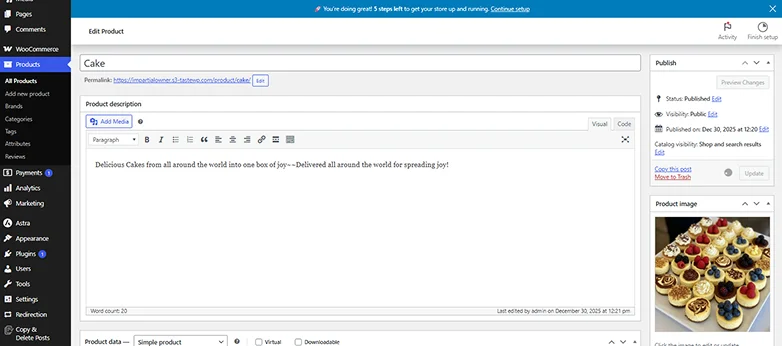
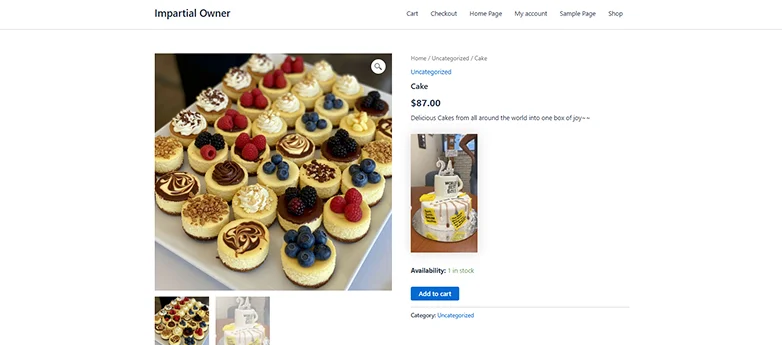
Expert Tip: Take your time to write clear product descriptions and use appealing images. This improves customer trust and boosts conversions. Also once you are done, you can see the live preview of your product page.
Step 4: Configure Payment & Shipping Options
Now the next step is to set up how your customers will pay for your products and how their orders will reach them. WooCommerce makes this easy with flexible options.
1. Set Up Payment Gateways
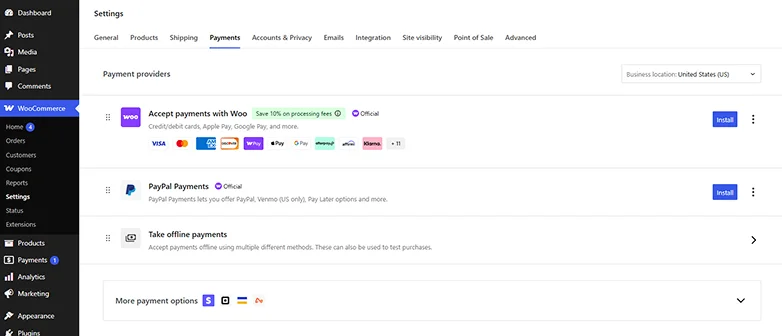
WooCommerce supports popular payment methods, giving your customers multiple ways to pay:
- PayPal.
- Stripe.
- Bank Transfer / Cash on Delivery: Ideal for local stores.
- And many other payment gateways which you can use via extensions.
Thus, always start with one or two gateways and later, grow as your store grows. Make sure to test them with a sandbox or test mode before going live.
2. Shipping Options
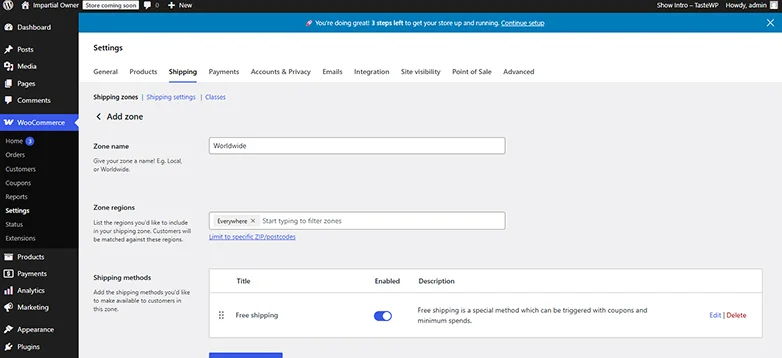
Accurate shipping is a must for a smooth customer experience. That’s why, WooCommerce allows you to:
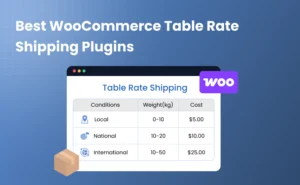
- Set Shipping Zones: Define regions you deliver to local, national or even international.
- Shipping Methods: the shipping methods you can offer are Flat rate, free shipping and local pickup as well.
- Add Shipping Costs: You can simply calculate per item, per order or by weight/distance to add accurate shipping cost for all orders with no stress.
3. Optional Settings
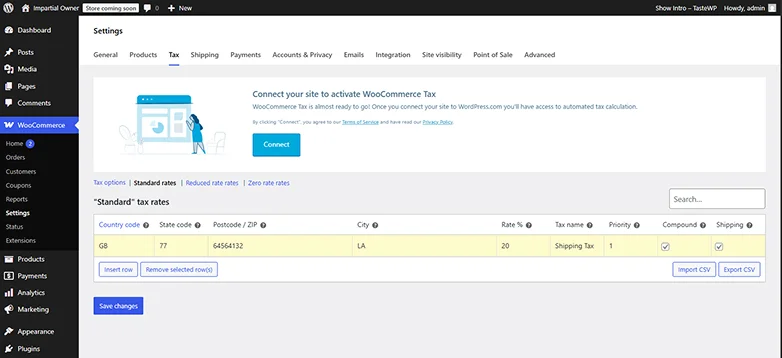
Here are some optional yet advanced WooCommerce settings to take your online store next level:
- Taxes: You can also enable this option to automatically calculate and collect tax if needed as per your region or country.
- Coupons & Discounts: Set up promotions to attract customers
Once payment and shipping are set up, your store is ready to accept real orders safely and reliably.
Step 5: Customize Your Store Design
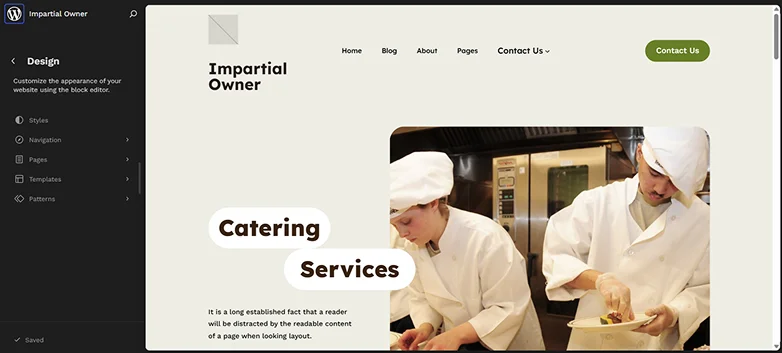
Now that your store can accept orders, it’s time to make it look professional and easy to navigate. Afterall, an eye-catching design always builds trust, gets attention and boosts conversions, even for beginner stores.
Here’s how to customize your WooCommerce store:
- Firstly, choose a WooCommerce Compatible Theme such as Astra, Ocean WP, Storefront and more.
- Customize the theme using WordPress customizer to match your brand’s style
- Set Up Key Pages such as Shop, Cart, Checkout or My Account
- Later, you can add them to your main navigation menu
- Lastly, remember to optimize all product pages
And that’s it !
Step 6: Test Your Store Before Launch
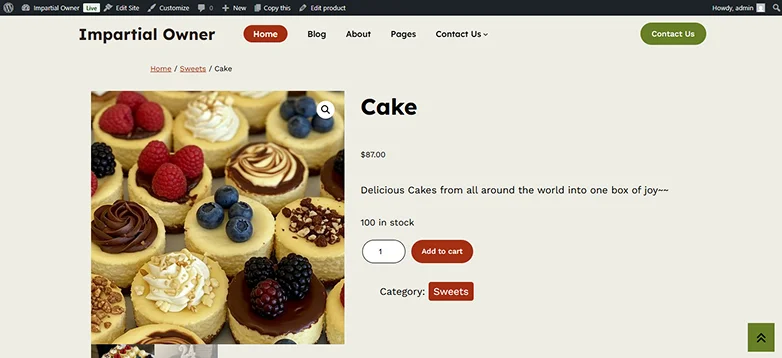
Testing is always important before making your eCommerce or online store go live!
A quick test can save your face, lost orders, payment failures, and customer confusion:
What to test before going live:
- Place a test order to check complete process
- Check emails and notifications
- Review shipping and taxes
- Test across all devices especially phones
- Check Page Speed & Performance
Once everything works smoothly, your WooCommerce store is ready to launch !
Let’s Wrap It Up
In this WooCommerce tutorial, we’ve walked through A to Z of WooCommerce: What is WooCommerce in WordPress, What is WooCommerce used and Why Choose WooCommerce, as well as how to create an ecommerce website in WordPress with WooCommerce.
So what are you waiting for? Make your online store reach new heights on the cloud nine of the internet alongside WooCommerce!
Related Articles