When you hear people talking about creating a WordPress site, you may also think,”I’d love to try…. but I’m not tech-savvy enough like others.”
Well, allow us to break that dream bubble as you don’t have to be tech-savvy at all to get started with WordPress.
Here’s an unknown fact: learning how to use WordPress isn’t as hard as it looks. Once you understand the basics and get a hang of it, it is surprisingly simple and even….fun.
In this blog, we’ll show you how to use WordPress to build a website from scratch, even if you’ve never done anything like this before.
So without any further delay, let’s dive in.
What Is WordPress and Why Is It Beginner Friendly?
WordPress is a powerful website building platform that allows you to create and manage websites without any technical skills or coding.
In simple terms, it’s the tool that helps you turn an idea into a real website with zero coding.
Today, WordPress powers over 43% of all websites on the internet, from personal blogs and portfolios to full-power business and eCommerce sites. That popularity isn’t random, it’s because WordPress is built with beginners in mind.
So if you’re wondering, “How do I use WordPress if I’m not tech-savvy?” — you’re already in the right place.
Here’s why WordPress is beginner friendly and easy to start for everyone:
- No coding is needed: It comes with simple visual interface to create and design web pages
- Friendly User Themes and Plugins: You can also install beautiful themes to change the look of your site with no hassle. And use plugins to add user-friendly features such as ARForms for creating online forms, BookingPress for creating service-based sites and so on.
- Ease of use: WordPress dashboard may look overwhelming at first but as you get started, you’ll become familiar with it in no time.
- Large Support: WordPress powers nearly half of the world’s websites so it’s obvious it’s going to have strong communities, better guides and tutorials.
- Budget Friendly: WordPress itself is already free but you can also get many free WordPress themes and plugins to take your site to the next level.
Understanding the WordPress Dashboard
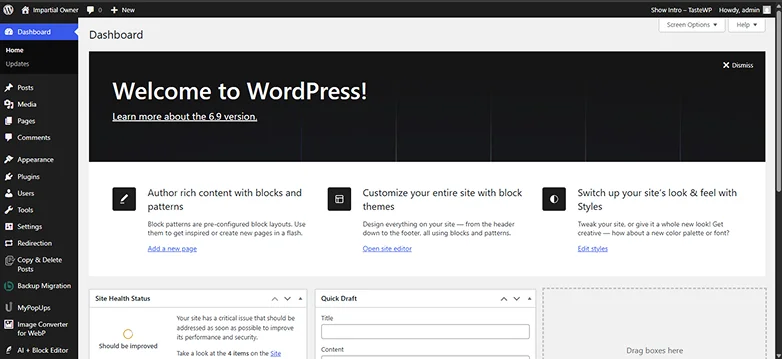
Once WordPress is installed and you log in for the first time, you’ll land on the WordPress Dashboard. This is now your website’s control center.
Think of it like the cockpit of a plane: all the buttons and menus may look overwhelming at first but once you know what each one does, you’re in full control.
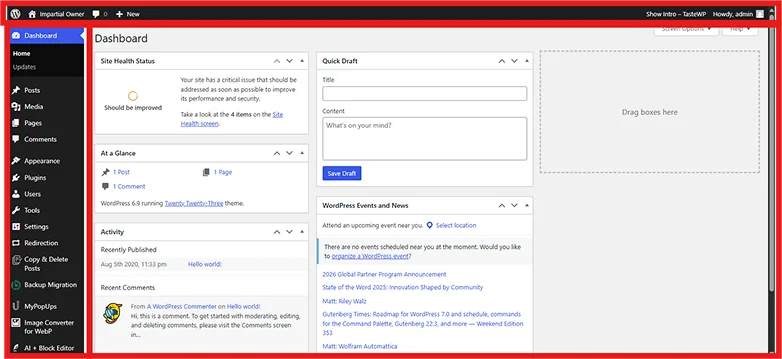
Thus to make you better understand it, let’s divide this WordPress dashboard into 3 sections:
- Menu on the Left
- Main Dashboard Area
- Top Toolbar
1. Menu on the Left
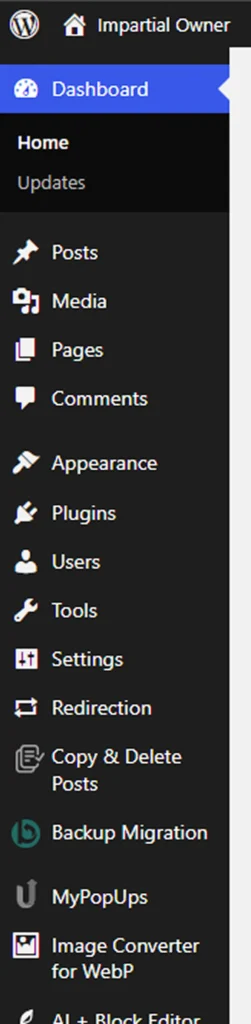
This is your main navigation. So here’s a quick look at most important menus to remember:
- Posts: For managing, writing blog posts, news updates, tags and categories.
- Media : For adding and managing images, videos, and files uploaded to your site.
- Pages: For managing and creating web pages like Home, About Us, Contact Us or Services pages.
- Appearance : Customize your website’s design, themes and menus.
- Plugins : Add extra features like contact forms, SEO tools or ecommerce tools.
- Users: Manage who can access or edit your site.
- Settings : Control basic site settings, like time zone, language, URLs and more.
2. Main Dashboard Area
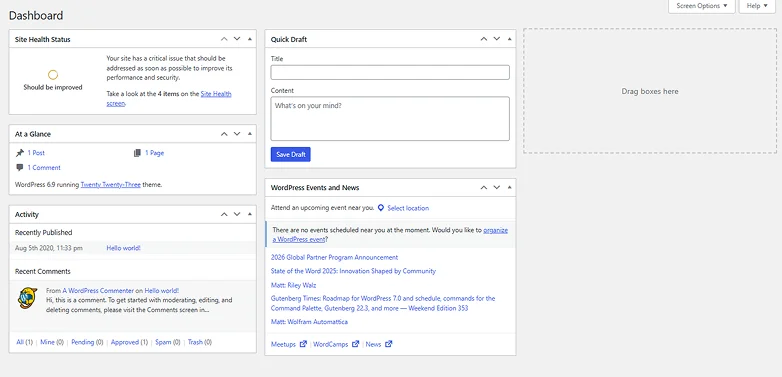
This is where you’ll see at-a-glance data about your complete website. From here, you can see a lot of things to get a quick overview such as:
- Site Health status
- At a Glance (visitors, comments, posts, and more)
- Quick draft section to jot ideas for posts
- Updates notifications for WordPress, themes and plugins
- Activity section to see recent activities
In the WordPress dashboard, you get everything important in one place.
3. Top Toolbar

At the very top, you can see quick links for:
- Viewing your website
- Adding new posts, pages, media or user
- Accessing notifications and updates
This toolbar is super handy once you get used to navigating the Dashboard.
Creating Content in WordPress
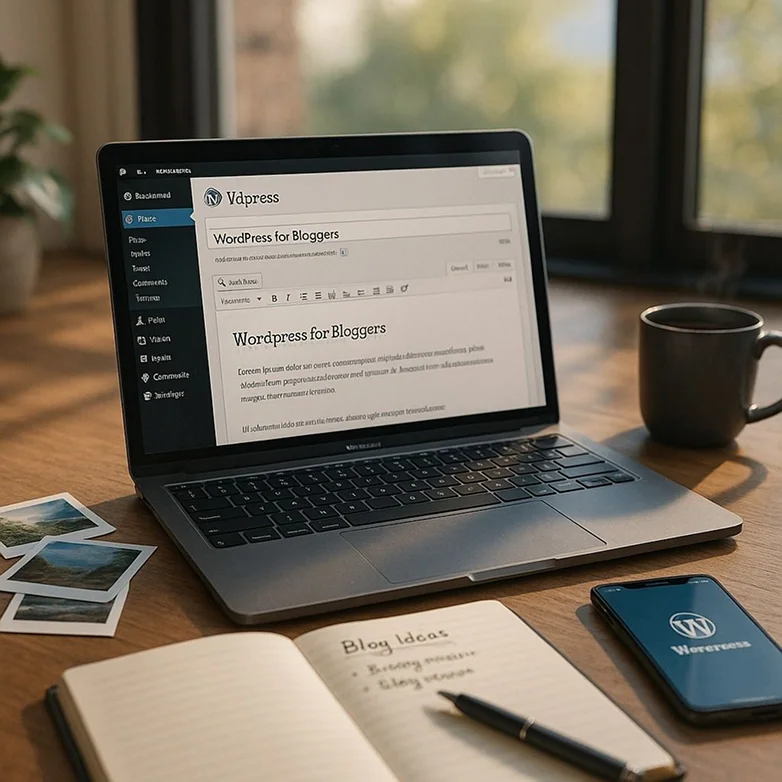
Now that you understand the Dashboard, it’s time for the fun part – creating content.
WordPress makes it simple to add both: web pages and blog posts, whether it’s a personal story, business information or a helpful tutorial guide for your audience.
Step 1: Creating a New page or Post
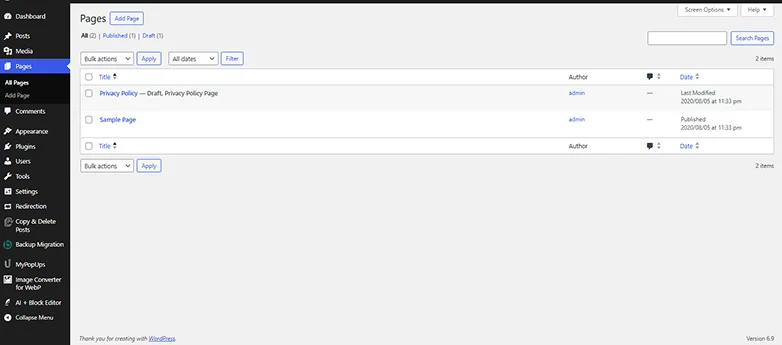
Now first you have to decide whether you want to create a page or post. No matter what you choose, both are easy to make.
WordPress uses a block editor. This means each piece of content such as paragraph, image, heading, button, or more are a separate block.
You can easily drag, drop and rearrange blocks. Thus, the designing part becomes super simple even for beginners.
The WordPress block editor is common for both so we’ll start with a page. Here’s how to create a new page
- Go to the Dashboard → Pages → Add Page (or Posts → Add Post).
- Give your page or post a title. Keep it clear and simple.
Step 2: Formatting Your Content
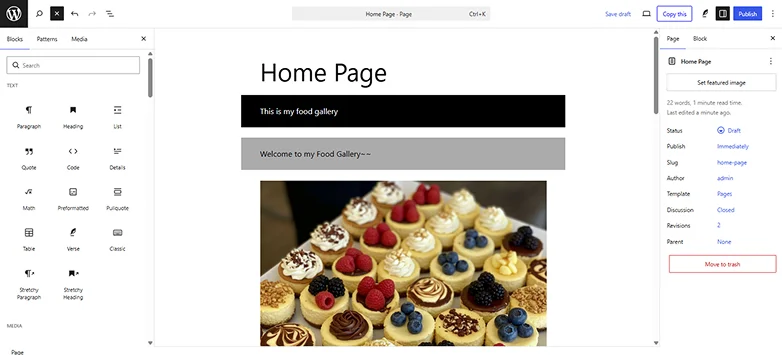
Now it’s time to start adding content, paragraphs, images and links to your web page so here are some pro tips from our WordPress experts for beginners:
- Headings: Use H1 for the titles, H2 for sections and H3 for subsections to make your content go with the flow.
- Images & Media: Click the “+” block, choose Image and upload files to make your pages more engaging.
- Links: Highlight text → click the link icon → add a URL. Links can guide readers to other pages or resources.
- Lists & Buttons: Use bullet points, numbered lists, and buttons for clarity and easy scanning.
Step 3: Preview & Publish
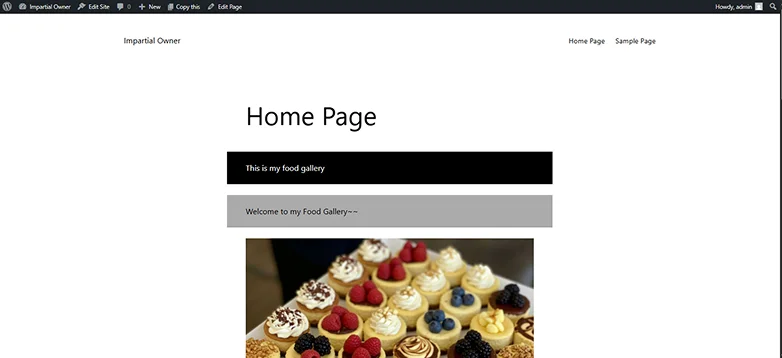
Before your content goes live, you must “Save Draft” for just in case scenarios.
Next, click Preview to see how it looks to visitors. Now you can make any edits if you want and finally click on “Publish”
And just like that, your content is live for the world to see!
Organizing Your Website Without Confusion

Once you’ve started creating content, it’s easy for your site to get messy. Pages, posts, menus, and categories can quickly overwhelm a beginner.
But no worries!
WordPress gives you simple tools to keep everything organized, so your visitors can use your site effortlessly too.
Here’s are some WordPress tips and tricks to stay always organized:
- Use Categories and Tags for getting structured blogs posts
- Use a good WordPress theme and create a clear menu
- Remember to use Pages wisely. You don’t have to create a LOT of pages, you just need the must-ones.
- Always stick to a consistent layout. Try to use same headers, footers and colors across all pages
- Before you go live, preview your site and make sure everything works smoothly
Customizing Your Site Without Coding
One of the best things about WordPress is that you can make your website look unique and professional without ever writing a single line of code at all.
Whether it’s changing colors, fonts, layouts or adding new features, WordPress makes it super easy even for beginners and non tech savvy people.
Choose a good WordPress Theme
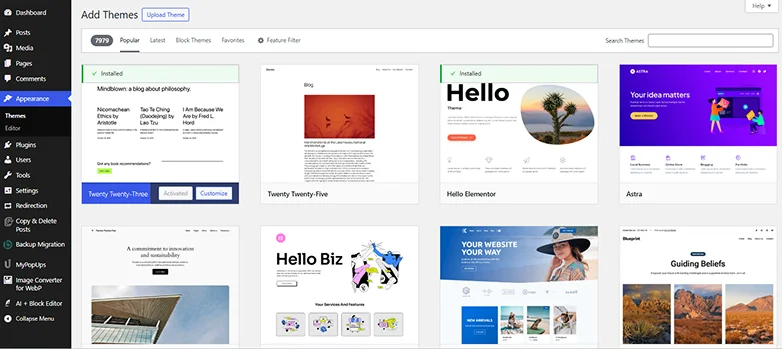
WordPress Themes control your website’s overall look and feel. WordPress has thousands of free and premium themes to choose from:
- First thing first, head over to the WordPress Dashboard → Appearance → Themes → Add New.
- Next, look or search for a theme that matches your style
- Lastly, Click Install → Activate
The best part? Once you install and activate the best WordPress theme, you can customize it fully as you want using a simple drag and drop interface, with no coding hassle.
Pro Tip: Start with a clean, free & simple WordPress theme. You can always change it later without losing content.
Use Popular Page Builders for More Better Designs with Ease
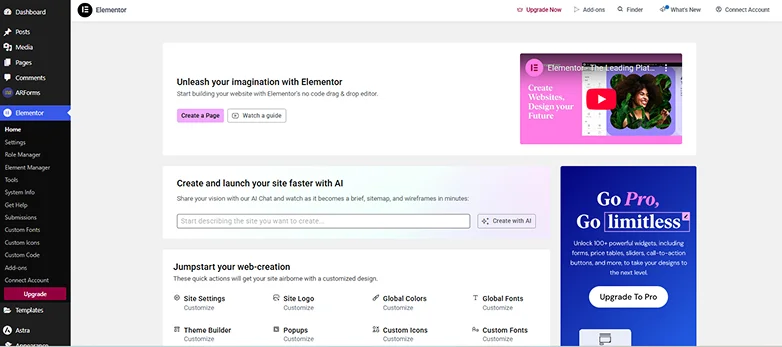
If you want full design control with no code, you can opt for a more user-friendly page builder than our default WordPress’s ones(Gutenberg).
There are many popular and user friendly page builders such as Elementor or Beaver Builder that allows you:
- Drag blocks wherever you want
- Add images, buttons, videos and text easily
- See your changes live as you build
- And a LOT more.
This gives you full creative freedom without hiring a developer or designer.
If you’d rather not handle the technical side yourself, FallingBrick offers freelance WordPress web design and development services, including custom website builds, SEO support and ongoing maintenance.
Add Plugins for Extra Amazing Features
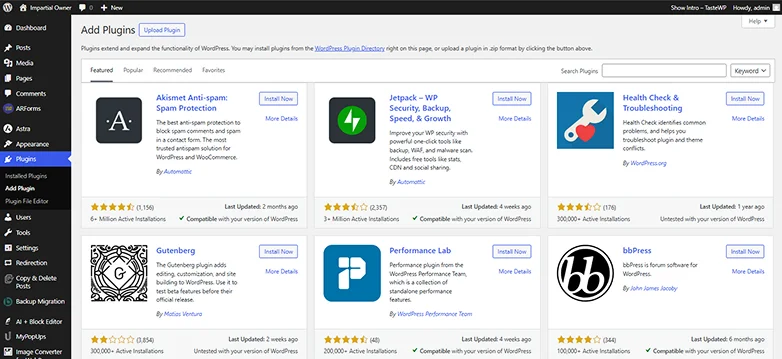
WordPress Plugins are like apps for your website. They let you add new features with zero coding or technical setup. Just simply:
- Head over to your WordPress Dashboard→ Plugins→ Add Plugin
- Now you can either search for your favorite plugin or go to its official site and download the zip file.
- If you have downloaded the zip file, you simply have to click on “Upload Plugin” and upload the zip file.
- From here on, you just have to click on “Install Now” then later “Activate Plugin”
Here are some popular beginner friendly plugins to get started:
- ARForms: Create contact forms
- Yoast SEO: Optimize pages for search engines
- WooCommerce: Sell products online
- Elementor: Drag and drop page builder
Pro Tip: Install only the plugins you need to avoid slowing down your site.
Final Tips & Tricks : Anyone Can Use WordPress (Even Beginners)
If you’ve made it this far….congrats! 🎉
You’re already way ahead of most beginners. By now, you’ve seen that WordPress isn’t scary, complicated or “only for tech-savvy people.” It lets literally anyone create and manage a WordPress site with ease.
In the end, here are a few final tips to make your WordPress journey smoother and stress free:
- Start simple (You can always improve later).
- Don’t be scared to click around (It is the best way to learn).
- Always keep your WordPress dashboard clean and simple
- Learn as you go (Not all features at once)
However, we may have forgotten to add one last important thing: Remember you are not alone! There are millions of beginners who have started exactly where you are right now – unsure, curious and maybe a little nervous.
The good news?
WordPress has one of the biggest communities around the world which is full of tutorials, guides and helpful people ready to support you.
So take it one step at a time, enjoy the process and don’t be afraid to learn as you go.
Your website doesn’t have to be perfect, it just has to start!
Related Articles: