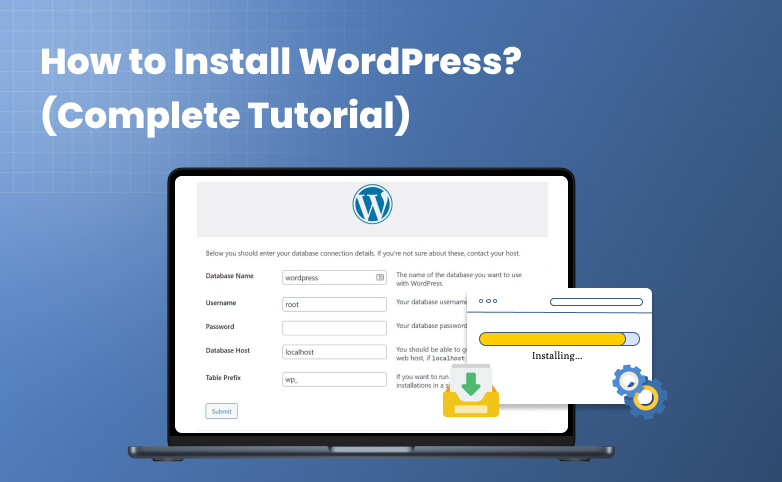
Starting a website sounds complicated….until you realize it’s not.
If you’re wondering how to install WordPress the right way, you’re in the perfect place.
WordPress powers over 43% of all websites worldwide. From simple blogs to full scale online businesses, WordPress is the first and most popular choice for everyone. And the good news? You don’t need to be a developer or tech expert to get started.
Every successful website starts with one simple step: a proper WordPress installation.
Whether you’re creating a blog site, an online store or a business website, knowing how to install WordPress correctly can save you hours of frustration later.
In this complete WordPress installation guide, we’ll walk you through:
The easiest way to install WordPress using hosting tools
- Manual installation for full control
- How to install WordPress locally on your computer
- What to do right after installation to set things up properly
No confusion! No skipped steps!
Just a clean and reliable setup you can build on confidently.
Let’s get your WordPress site live, the right way.
What Do You Need Before Installing WordPress? (Quick Checklist)
Before you jump into the WordPress installation tutorial, here’s a quick checklist to ensure we all are on the same page.
The best part? You don’t need to be a tech-savvy dude to cut it off. Just tick off this simple checklist and get moving.
A Domain Name (Your Website Address)
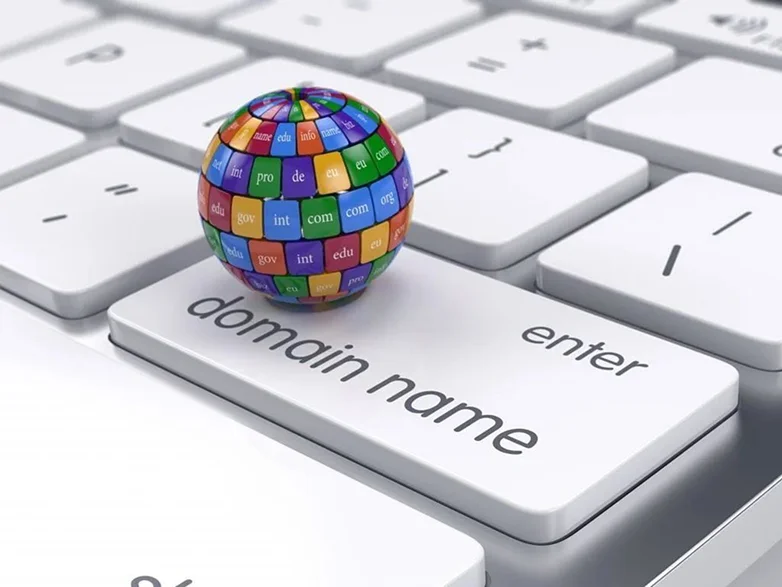
This is your website’s identity, how people will recognize and search you on the vast plains of websites. Let’s say your brand name is “DSDN” then you can opt for a domain name such as dsdn.com.
In simple words, it’s like “yourbrand.com”.
You can also take a look at this quick guide of mind blowing domain name ideas to get started.
Once you decide your domain name, you can either:
- Buy a domain from GoDaddy, Namecheap or Google Domains.
- Or you can get a free one with many hosting plans
Web Hosting (Where Your Website Lives)

Web hosting is a service that gives you some space on a server to store your website’s files such as text, images, code. Later, this can be seen by everyone on the internet 24/7.
It’s like paying someone rent(recurring fee) to own a small storage unit (space on server) to keep all your stuff(website’s content). The location of this storage unit is on the internet which makes your website available 24/7. And in this scenario, your landlord will be the hosting company who owns this storage unit (Servers) and maintains it on a regular basis.
There are many types of hosting services just like different storage units:
- Shared hosting
- VPS
- Dedicated hosting
- Cloud Hosting
Here are some popular hosting providers names:
- Bluehost
- SiteGround
- HostGator
- GoDaddy
A Database (Usually Included Automatically)

WordPress stores all your content such as text, images or code in a database.
The good news is most hosting providers create this automatically when you install WordPress so no need to worry.
Just in case if you are installing it manually, you’ll need:
- Database name
- Username
- Password
Yet no stress….We’ll cover this later
FTP Access (Only for Manual Installation)
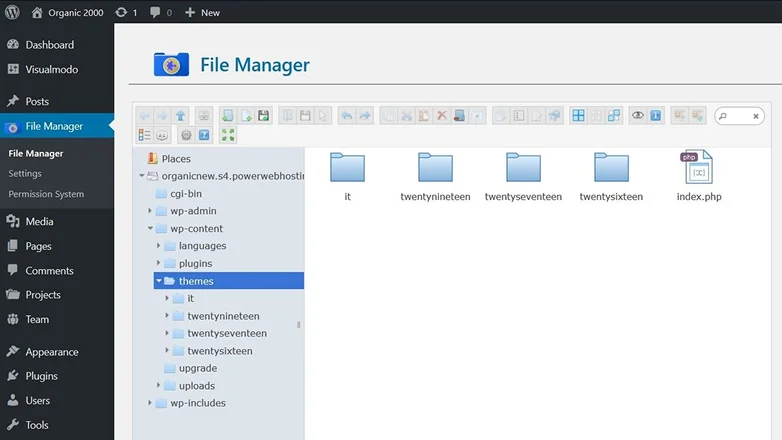
Now you can skip this checklist point as it’s for our advanced users who plan on installing WordPress manually.
If you are one of those advanced tech-savvy guys, you’ll need FTP access to upload files on your server. And for that, you just need:
- An FTP client (like FileZilla)
- FTP login details from your hosting providers
The best part? If you are using one click installer, you can skip this completely.
A Local Environment (Optional)
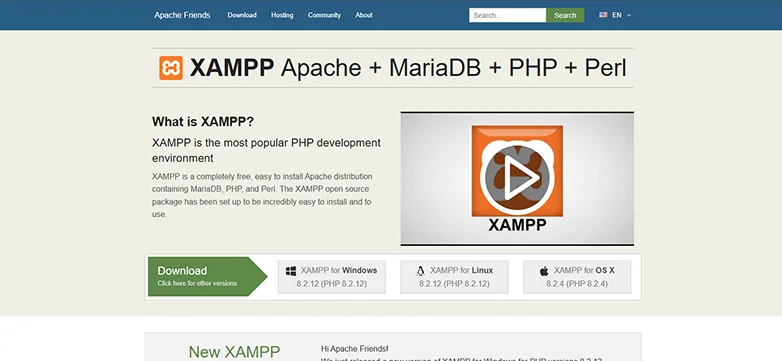
Now you can skip this checkout as well ’cause this is for those who want to install WordPress locally on their computer.
For installing WordPress locally, you need:
- Local WP
- XAMPP
- MAMP
A Few Minutes of Focus (Seriously 😄)

Installing WordPress mostly takes 5 to 10 minutes only, even faster with modern hosting tools.
Once you’re ready, the setup process is smooth, beginner-friendly and surprisingly quick.
So without any further ado, let’s jump right in.
How to Install WordPress : Step by Step Guide
Method 1 : Install WordPress Using Hosting Auto-Installer (Recommended)
This is one of the easiest and quickest ways to install WordPress in our whole WordPress installation tutorial. You’ll be surprised just how easy it is, barely taking a few minutes.
So here’s a step by step process of how to install WordPress using hosting auto installer:
- Log in to your hosting account: Go to your hosting dashboard like cPanel or custom panel.
- Find the WordPress installer: Look for tools like Softaculous, WordPress Manager or One Click Install.
- Click “Install WordPress”: Now you simply have to choose your domain and installation directory (leave it empty to install on the main domain).
- Set basic details such as:
- Site name
- Admin username & password
- Admin email
- Click Install and wait a few seconds, then WordPress will be installed automatically.
And that’s done!
Now you finally have your own website URL and WordPress admin login link, straight access to your own WordPress dashboard for running your site smoothly as you want.
Method 2 : How to Install WordPress Manually (FTP Method)
As we discussed before, if you are one of those advanced users or tech-savvy guys who enjoy having full control over your WordPress setup, this method is for you.
Plus, it’s also ideal if your host doesn’t offer a one click installer or if you simply love doing manual configuration.
Here’s a step by step process on how to install WordPress manually using FTP method:
- Download WordPress: Go to the official WordPress site and download the latest version.
- Upload WordPress Files via FTP: Alongside WordPress, you also have to install FTP client like FileZilla. Later, simply connect it using your hosting FTP credentials and upload the extracted WordPress files to your public_html folder.
- Create a Database: In your hosting control panel, you just have to create a new database, add a user and assign all permissions. Plus, remember to keep the database name, username and password easy to remember yet unique.
- Configure “wp-config.php”: After the database, you have to rename wp-config-sample.php to wp-config.php. At last, you have to just add your database details inside the file.
- Run the Installation: Open your browser and visit your domain. Next, simply follow the on screen setup to enter your site name, admin login and password.
And that’s it! Now your WordPress site is all set up to go live. Next, it’s time to spare a glance on how to install WordPress locally on your computer.
Method 3 : How to Install WordPress Locally (On Your Computer)
Here’s a fact before you get rolling: Installing WordPress locally is only best for testing or learning, not for actual site hosting.
And since it runs only on your computer, you don’t need any web hosting as that’s for putting your site on the internet. Also, many people use this method for creating a WordPress site before going live and seeing how it will look in real life.
The best thing is this method is used mostly by developers so if you are a beginner or a simple-minded person, we recommend sticking with method 1 only.
So if you are wondering how do I install WordPress on my computer, here’s a quick step by step install WordPress guide to go:
- Install a Local Server Environment: As we discussed earlier, you have to choose one of these tools ahead, install and launch the software on your computer first thing first.
- Local WP (beginner-friendly)
- XAMPP
- MAMP
- Create a Local WordPress Site: Now most of the tools we installed before lets create a new site simply. You just have to click on “Create New Site”, enter your site’s name, and set your admin user name and password.
- Let the Tool Handle Setup: Once you have set up WordPress site details, the local environment automatically creates the database, configures WordPress files and sets up your local URL too. In most scenarios, there’s no manual setup. (And even if there is, we’ll show you how to fix it later here)
- Access Your Local Site: Now once everything is set, open your browser (Chrome, Edge and so on) and log in using the admin credentials you created.
How to Set Up WordPress After Installation
Thinking about how to set up a WordPress website after installation? No need to wrack your brain!
Here’s how to setup WordPress site and make it ready to launch:
Log in to WordPress Dashboard
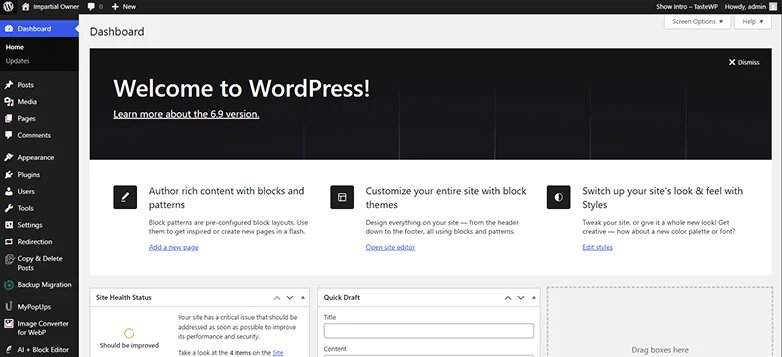
First thing first, simply log in to Your WordPress Dashboard.
You can access your WordPress Dashboard at “yourdomain.com/wp-admin”. If asked for a username and password, you already got it so simply enter it and get on.
Pro Tip: Get yourself familiar with the left hand menu of WordPress dashboard. You must get familiar with its user interface to get moving smoothly.
Configure General Settings
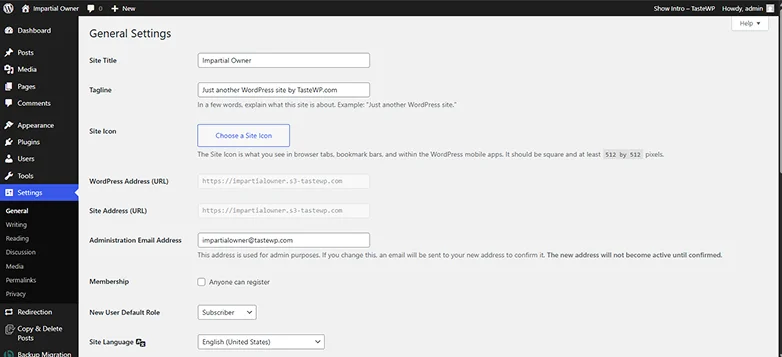
Next, head straight to general settings of WordPress Dashboard and start by changing:
- Site Title & Tagline: Make it clear and memorable
- Timezone & Date Format: Keep it accurate for publishing
- Permalinks: Set to “Post name” for SEO-friendly URLs
- And many more just like that.
Install a WordPress Theme
Now it’s time to decide how your WordPress site will look. You can simply go to the WordPress dashboard → Appearance → Themes.
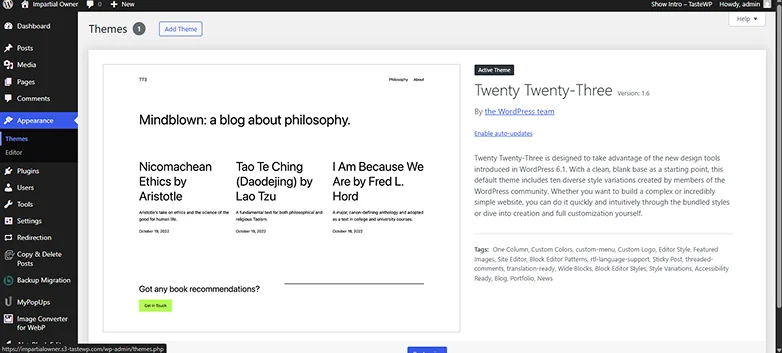
From here, you can either customize the default theme or Add a new WordPress theme. For adding a new WordPress theme, simply click on “Add Theme” and you’ll see thousands of WordPress themes which you can install in just one click.
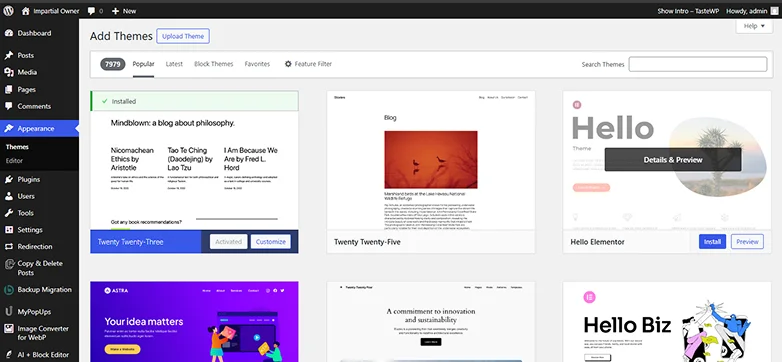
All you have to do is hover over the WordPress theme you like, click on “Install” and later “Activate”.
Install Essential Plugins
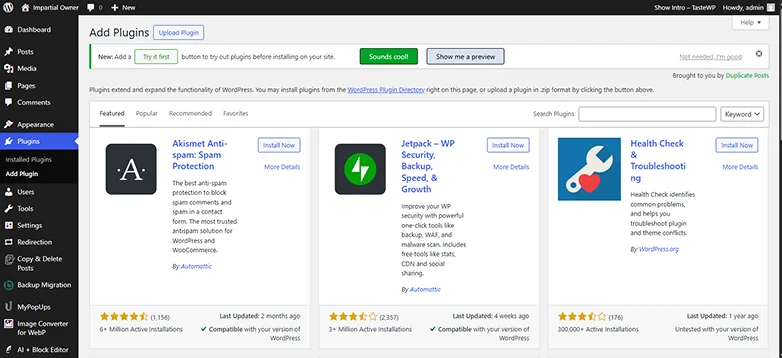
WordPress Plugins are like tools for adding extra features to your site.
To install WordPress plugins, just go to WordPress Dashboard → Plugins → Add Plugins.
We recommended you to start with these essentials WordPress plugins such as:
- ARForms: It lets you create all kinds of online forms for your WordPress site.
- Rank Math or Yoast SEO: It helps you boost your site’s SEO ranking.
- Wordfence: This is one of the best WordPress security plugins around.
- UpdraftPlus: It helps you backup your entire WordPress site with ease.
- WP Rocket or LiteSpeed Cache: It makes sure your WordPress site is always super fast.
Set Up Your Homepage and Pages
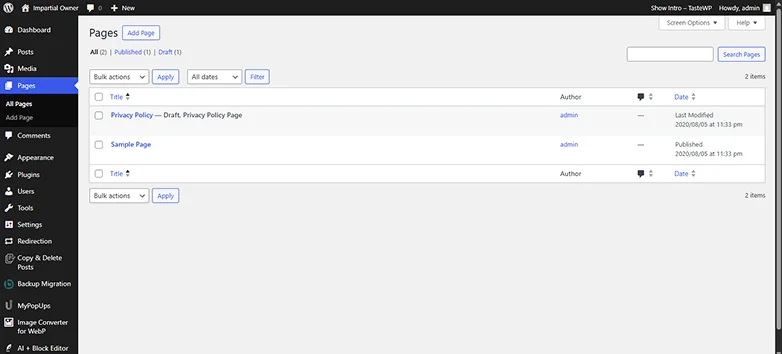
Now it’s time to create webpages for your WordPress site. you can create pages by going to WordPress Dashboard → Pages → Add Page.
Inhere, you can create pages such as:
- Home page: your welcome or landing page
- About us page: tell your story
- Contact us page: a simple form for inquiries (ARForms can make it easy peasy)
- Blog: optional but great for SEO
Customize Your Site
At last, it’s time to make your WordPress site completely and uniquely yours by:
- Adding your logo and brand colors
- Set up menus (Dashboard → Appearance → Menus)
- Configure widgets in your sidebar or footer
- Adjust homepage layout and blog settings
Test Your Website
Last but not the least, just test your WordPress site once to make sure everything works just as it should. Afterall, a quick test now saves headaches later.
You have to make sure your WordPress site is:
- Full responsive
- All links, redirections and navigation works
- Page loading speed
- Forms and contact pages are receiving queries
And that’s how you set up a WordPress website the easiest way.
Common WordPress Installation Problems (And Fixes)
Installing WordPress is usually hassle free and smooth but even beginners can hit a few snags.
Don’t worry as we’ve got your back.
Here are the most common WordPress installation problems and how to fix them quickly right away:
Database Connection Errors
“Error establishing a database connection” is the most common WordPress installation error that appears when credentials in wp-config.php mismatch your MySQL setup.
Solution: All you have to do is verify your:
- DB_NAME
- DB_USER
- DB_PASSWORD
- DB_HOST (Usually “localhost”)
Also, make sure your database server is actually running. At last, nothing happens, we suggest you contact your hosting provider if the issue continues.
White Screen of Death
While the name of the problem is scary, it simply means your site shows a blank white page. It mostly happens after installation.
Solution: We suggest you deactivate all plugins via FTP or hosting panel. Or you can switch to the default theme again. At last, you can try increase your PHP memory limit in wp-config.php
File Permission Issues
Errors like “Unable to write to wp-config.php” or “Could not create directory” pops up due to wrong permissions (folders: 755, files: 644) so no worries.
Solution: All you have to do is use FTP or cPanel File Manager to adjust via chmod.
404 Page Not Found After Installation
The problem here is simple: Your links or pages return “404 Not Found” because they can’t find the page. Since they are lost, let’s show them their way back home.
Solution: Go to your Settings → Permalinks. Now click “Save Changes”. This’ll refresh the URL and fix it.
Final Thoughts : Start Your WordPress Website Today
In a nutshell, this is how you install WordPress in all the possible ways.
No matter whether you are a beginner who wants a simple user interface or a tech-savvy developer who wants advanced customization with full control, WordPress is the best content management system and software for building a website from scratch.
WordPress is already powering over 43% of websites all across the seas, so what’s stopping you? Install WordPress the way you want and start your WordPress website right now!
Related Articles