- 1 Always Keep WordPress, Themes and Plugins Updated
- 2 Use a Lightweight WordPress Theme & Plugins
- 3 Master the WordPress Block Editor (Gutenberg)
- 4 Improve Website Speed with Caching and Image Optimization
- 5 Secure Your WordPress Website Properly
- 6 Optimize Your Website for SEO from Day One
- 7 Back Up Your Website Regularly and Reliably
- 8 Final Thoughts: Start Applying These WordPress Tips Today
WordPress is powerful.
That’s an undeniable fact. However, many website owners forget WordPress is only powerful if you use it the right way.
Running a WordPress website looks simple on the surface, but keeping it fast, secure and optimized is where most website owners struggle.
No matter whether you’re just starting out or already managing a live site, knowing the right WordPress tips and tricks can save you hours of work and avoid costly mistakes in future.
In this guide, we’ll share 7 practical WordPress tips and tricks every website owner should know to manage their site like a Pro.
Let’s jump right in!
Always Keep WordPress, Themes and Plugins Updated

Do you know outdated software is the #1 reason WordPress sites get hacked, break after hosting upgrades or face plugin conflicts?
Always keep everything up-to-date means updated!
Keeping your WordPress, themes and plugins updated is one of the most fundamental yet most overlooked WordPress tips.
Every update released by WordPress core, theme developers or plugin authors mostly comes with security patches, performance improvements, bug fixes and compatibility updates.
And ignoring these updates can seriously and slowly weaken your website even if everything appears to be working just perfect on the surface.
So what should you update regularly? Look below:
- WordPress Core: This is the foundation of your site so at least make sure to always keep it current.
- Themes: Active themes should be updated to maintain design stability and security.
- Plugins: Especially security, SEO, caching and eCommerce plugins.
- PHP version (via hosting): Many updates rely on modern PHP versions for optimal performance.
No time to keep an eye on every update? No worries! Take a look down at some pro tips for busy website owners to everything working perfectly:
- Managed WordPress hosting with automatic updates.
- Maintenance plugins that handle updates and backups.
- Monthly update routines to avoid bulk update issues.
You’re protecting your WordPress site from future security threats by keeping everything in WordPress, even WordPress itself updated, boosting performance and making sure everything works perfectly in the long term.
Moreover, this single practice can save you from downtime, lost data and costly repairs in future.
Use a Lightweight WordPress Theme & Plugins

Having a lightweight WordPress theme and carefully selected plugins is one of the smartest WordPress tips for maintaining your WordPress site.
Many website owners choose themes packed with features, animations and built-in page builders. Although they sure appear impressive, these heavy themes and bloated plugins often slow down your website.
It means more loading time and compatibility issues over time. And a faster site impacts SEO rankings, conversion rates and bounce rates right away.
However, ever wondered, “what makes a WordPress theme lightweight?” A lightweight theme is a theme that:
- Loads minimal CSS and JavaScript
- Avoids unnecessary animations and sliders
- Works smoothly with popular page builders (or without them)
- Is optimized for Core Web Vitals
- Focuses on performance, not visual overload
If you need expert recommendations, here are some of our best picks for the fastest WordPress themes in 2026.
Now, let’s move on to the WordPress plugin. Afterall, sooner or later, your WordPress dashboard is about to be filled with tons of WordPress plugins before you can even realise.
The reason is behind most WordPress advanced features, there’s a WordPress plugin. From creating simple only forms to advanced membership sites, Plugins extend WordPress functionality.
On the flip side, installing too many or poorly coded ones can slow your site real quick.
That’s why you must always:
- Choose well maintained plugins with recent updates and good reviews.
- Replace multiple plugins with one multipurpose plugin.
- Regularly audit and remove unused plugins.
- Install plugins you really need (Not all just to try).
- Avoid plugins that duplicate features which are already built into your theme.
Also, here are some common mistakes to avoid as a beginner:
- Using themes with bundled sliders, shortcodes, and page builders you don’t need
- Installing plugins just to “try them out” and forgetting to remove them
- Relying on outdated or abandoned plugins just because they’re free
- Using multiple plugins for the same function
Choosing a lightweight WordPress theme and plugins keeps your site fast, secure, and easy to manage.
Master the WordPress Block Editor (Gutenberg)
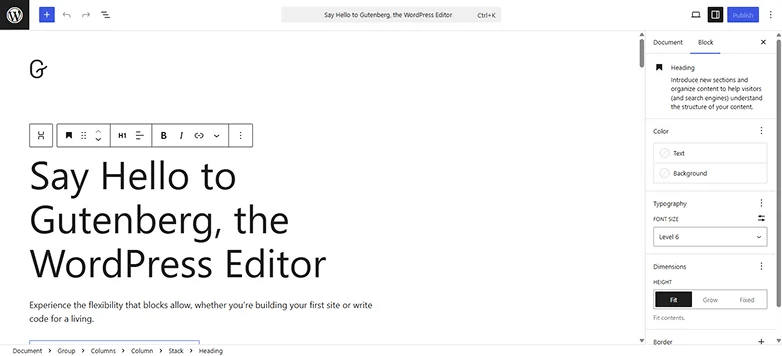
Mastering the WordPress Block Editor, also known as Gutenberg, is one of the most valuable WordPress tips for managing your site effortlessly and future proofing your content.
Many beginners try to avoid Gutenberg or rely heavily on third-party page builders such as Elementor or Divi. To be honest, they’re also not wrong here. Most of these other WordPress page builders are much more user friendly.
And although page builders have their place, the Block Editor is faster, cleaner and natively optimized for WordPress. This makes Gutenberg the best long-term choice for most websites.
If you learn to use Gutenberg properly, you can build professional looking pages without extra plugins or performance heavy tools.
Moreover, WordPress Block Editor is still one of the most popular page builder because :
- Built into WordPress: No dependency on external builders
- Better performance: Lighter code compared to many page builders
- SEO friendly: Clean HTML structure that search engines prefer
- Mobile responsive by default: Blocks adapt well across devices
- Future proof: WordPress development is centered around blocks
The Block Editor lets you create structured and flexible layouts using individual blocks such as:
- Headings, paragraphs, lists, and images.
- Buttons, columns, spacers and tables.
- Cover sections and media blocks.
- Reusable blocks for repeated content.
- Pattern blocks for ready made layouts.
On top of that, with block patterns, you can design sections like FAQs, call-to-action areas, pricing layouts and feature lists in just a few clicks.
Take a look down at the best WordPress Tips to use Gutenberg like a pro:
- Use Headings (H2, H3) properly to improve readability and SEO.
- Create Reusable Blocks for content you use often (CTAs, notices).
- Save time with Block Patterns instead of building layouts from scratch.
- Keep layouts simple and avoid overusing columns and nested blocks.
- Use the List View to manage complex page structures easily.
- Helpful block plugins (without bloat)
In the end, no matter what happens, you must avoid disabling Gutenberg completely. because let’s be honest: It’s not as bad as people say in communities.
Once you’re comfortable with the Block Editor, you’ll:
- Build pages faster
- Reduce dependency on heavy plugins
- Improve site speed and SEO
- Maintain your site more easily over time
Mastering Gutenberg helps you work with WordPress, not against it.
Improve Website Speed with Caching and Image Optimization
Slow loading pages can easily:
- Make visitors unhappy.
- Increase bounce rates.
- Hurt your search rankings.
Thus, optimizing your WordPress site for speed is a must, and it’s one of the most effective WordPress tips you can start off with today.
Two of the most powerful ways to boost performance are caching and image optimization.
Caching stores static versions of your pages so visitors don’t have to load the site from scratch every time. So this lowers your server requests and speeds up page loading. It’s like taking the extra burden from your server to make it work faster.
And in order to do that, here are some of the best WordPress caching practices:
- Use a reliable caching plugin like WP Rocket, W3 Total Cache or LiteSpeed Cache
- Enable browser caching to store static files locally on users’ device
- Use page caching to serve preloaded pages quickly
- Enable minification to reduce CSS, JavaScript, and HTML file sizes
Now that we’re done with caching, let’s spare a glance at image optimization for speed.
Till now, you must have got an idea that large and unoptimized images are one of the biggest culprits of slow WordPress sites. And optimizing those images reduces their file size without sacrificing on the quality.
Sounds like a good deal to go, right? If so, here’s how you can optimize WordPress images:
- Compress images using plugins like Smush, ShortPixel or Imagify.
- Serve images in modern formats like WebP for faster loading.
- Resize images before uploading to match your theme’s requirements.
- Enable lazy loading so images load only when they appear on the screen.
By implementing caching and image optimization, you’ll notice a significant change (A good one) in your page speed and overall site performance.
Afterall, fast loading websites always make visitors happy and skyrocket SEO. Plus, it also makes your WordPress site feel professional, helping you manage it like a true pro.
Secure Your WordPress Website Properly

These days, all it takes is just a single vulnerability to damage everything: your website, brand reputation and revenue.
Thus, advanced security practices are something not to be taken lightly, whether you’re running a blog, eCommerce store or membership site.
Here are the most essential WordPress security tips every website owner should know:
- Use strong passwords for all accounts and encourage users to do the same
- Add two factor authentication (2FA) for admin accounts
- Keep WordPress, themes and plugins updated (covered in Tip #1)
- Regularly back up your site and store backups offsite. (We’ll discuss it soon in detail)
- Use SSL certificates to encrypt data and enable HTTPS
- Install a reliable security plugin such as Wordfence, iThemes Security or Sucuri
- Limit login attempts and block suspicious IP addresses.
In the end, having proper security means your WordPress site stays online, your data remains safe and your visitors trust your brand.
Optimize Your Website for SEO from Day One
Search Engine Optimization (SEO) isn’t something to tack on later. SEO must start the moment you hit that “Live” button and your site goes live.
Moreover, it may also help search engines like Google understand and index your content which can turn out to be the best decision ever taken for a long term growth strategy.
And to do that, you can:
- Use SEO friendly URLs: Short, descriptive links with keywords
- Install an SEO plugin: Tools like Yoast SEO or Rank Math help manage metadata, sitemaps, and schema
- Set headings like H1, H2 and H3 to make it more easy to read for both readers and Google
- Create high quality content
- Add internal links to connect related content and improve navigation
- Optimize images with descriptive alt text and proper file sizes.
- Mobile friendliness and fast loading speed (covered in Tip 2 & 4).
Lastly, you must keep an eye on your search performance and keywords using analytics tools such as Google Analytics.
Back Up Your Website Regularly and Reliably
No matter how careful you are, technical errors, hacking attempts, plugin conflicts or hosting issues can lead to data loss.
Backing up your WordPress website is like having an insurance policy for your website. It makes sure that you can restore your WordPress site anytime if things start to fall short.
Besides, backup up your complete WordPress site can also:
- Protect it against hacking or malware: Recover your site if things go south.
- Avoid accidental data loss: Restore content after plugin or theme errors.
- Lowers downtime: Quickly get your website back online after crashes.
- Safeguard eCommerce: Preserve orders, customer info and payment history.
- Peace of mind: You always have a safety net if something goes wrong.
Regular backups act as your website’s safety net. With a reliable backup strategy, you protect your work, maintain business continuity and make sure your WordPress site can recover right away from any unforeseen issue.
Final Thoughts: Start Applying These WordPress Tips Today
WordPress is one of the best budget friendly and easy to use CMS for creating a website. But managing a WordPress site gets overwhelming if not done the right way.
With these expert WordPress tips and tricks, you can skyrocket your site’s performance, security, SEO and visitor’s experience completely.
No matter whether you’re a WordPress beginner who’s just getting started or a business owner managing multiple sites, these WordPress tips will surely come in handy.
Start applying these WordPress tips today and take control of your website like a pro!
Related Articles